
Choose your own photo or saved creation
Remove or blur photo backgrounds
Keep the subject. Remove, recolor, or blur the background.
Upload a portrait, product, or another clear subject. Cutouts save a transparent PNG; you can also choose a solid color or blur the original background directly.
Transparent PNGSolid color PNGBlurred backgroundUp to 40 photos per batch
1 credits / photo · Check fine edges before downloading.
Portrait exampleOriginal → Transparent PNG → Solid color PNG
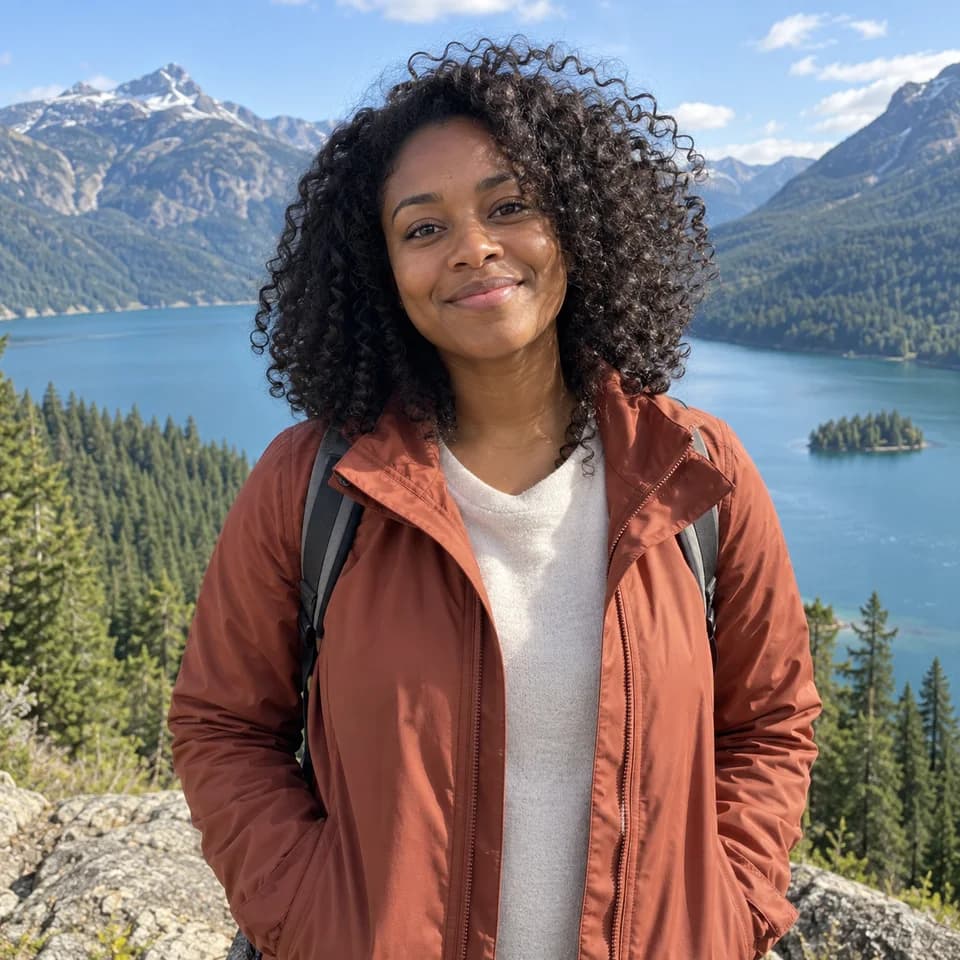
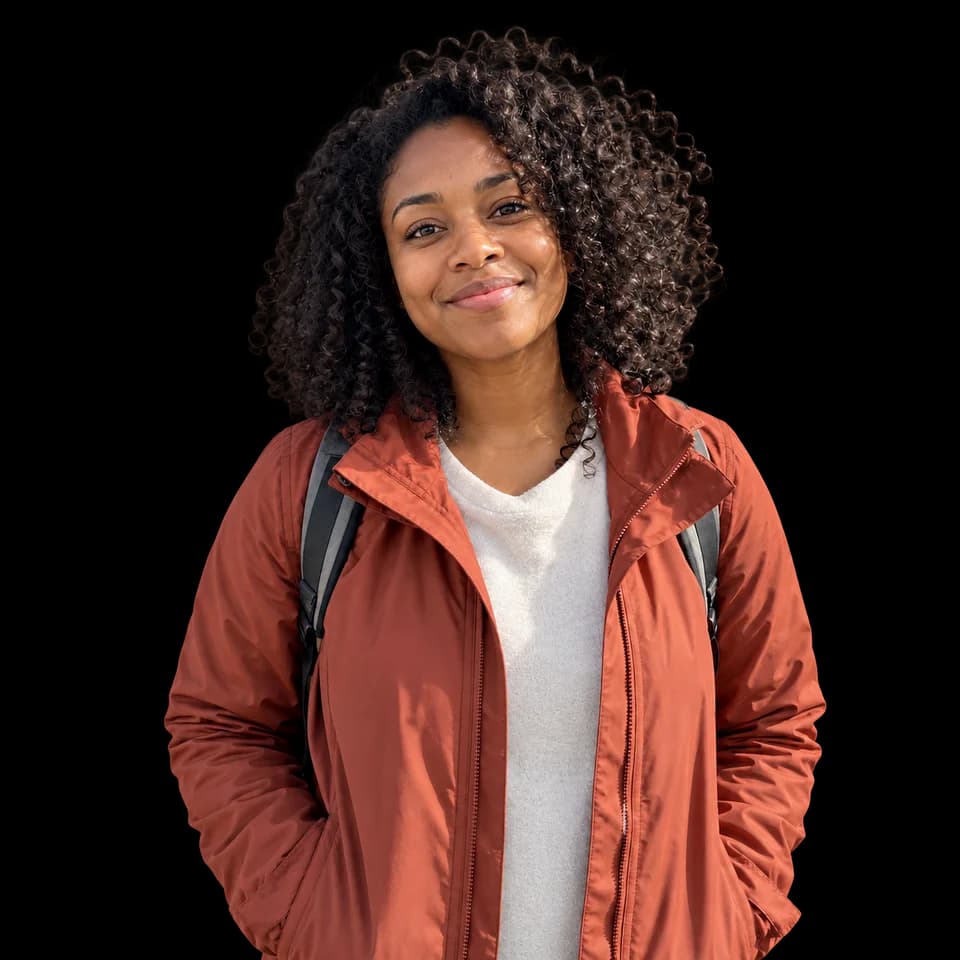
AI-made display images. Actual results depend on your photo and have not been quality-verified with this tool.
Where you can use it
See the subject without the original background
Choose a photo type and move the divider to compare the source with a transparent cutout.
Separate a person from a busy travel photo for a profile or design.
AI-made display images. These are not verified results from the live background-removal service; inspect edges in your own result.
What the tool does
Remove, recolor, or blur the photo background
Upload one photo or a batch. The tool separates the subject, saves a transparent PNG, and can also make a solid-color or blurred-background version.
- Transparent firstThe transparent PNG stays available when you add another effect.
- Your color, your choicePick white or another preset, use the palette, or enter a HEX color.
- Blur the original sceneKeep the subject clear while softening the original background; choose the blur strength.
- Several photos, separate resultsProcess up to 40 photos per batch and download successful files together.
AI-made display images; actual removal quality has not been verified with this service.
Batch removal2 / 40
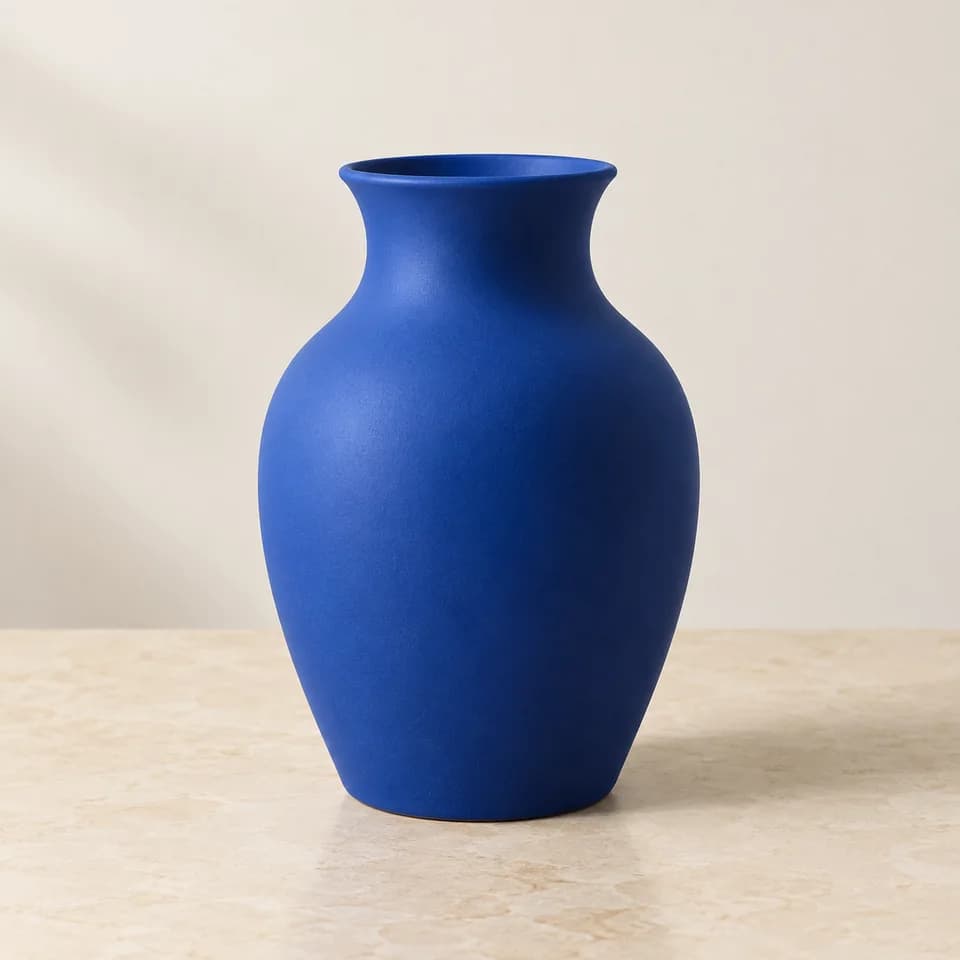
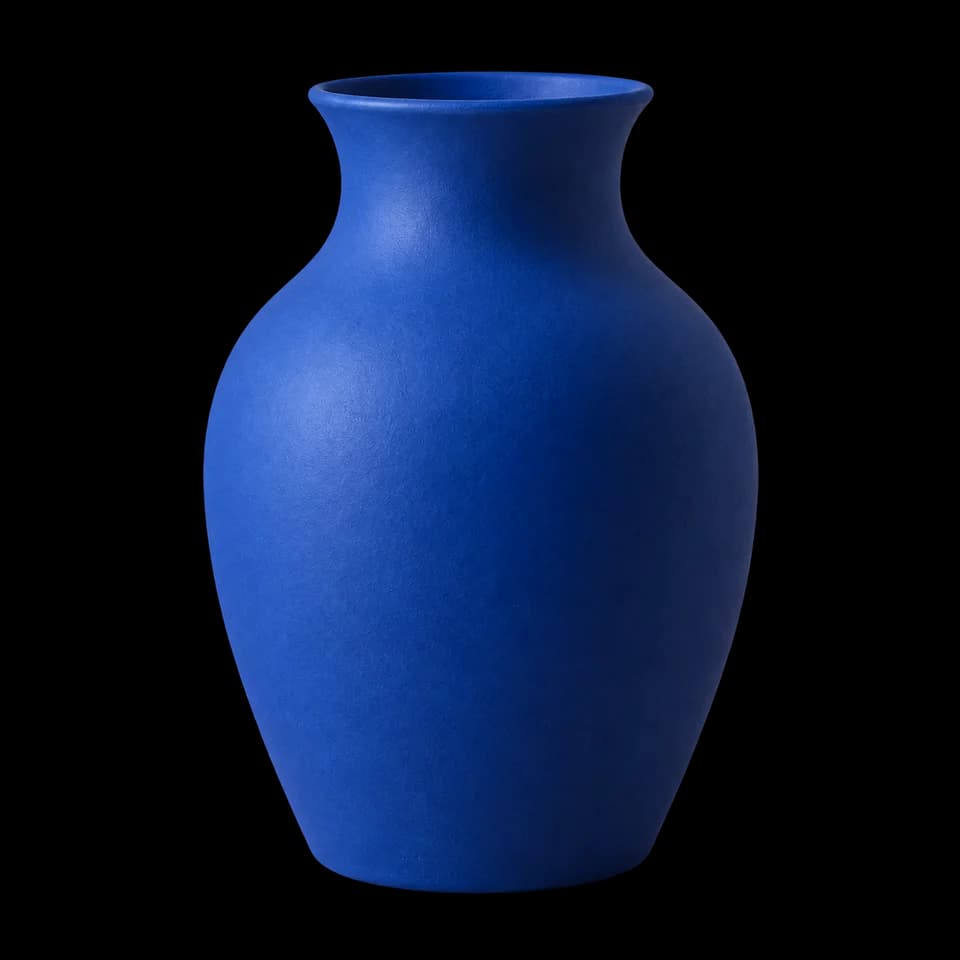
Individual results + one ZIP
AI-made display images. Actual results depend on your photo and have not been quality-verified with this tool.
Batch removal
One batch, up to 40 photos
Keep transparency by default, or choose one shared color or blur strength. Follow each photo and download successful PNGs together as a ZIP.
Remove background ↗How it works
AI separates the foreground
Review and download the result
Questions
What files can I upload?
JPEG, PNG and WebP photos. Images are resized when needed for processing.
Can I process several photos?
Yes. Each photo has its own status. Successful results remain available even if another photo fails.
Can I keep the transparent version?
Yes. The transparent PNG stays available when you add a solid color.
Can I blur the original background?
Yes. Choose background blur before processing. AI edits the original photo directly while aiming to keep the subject sharp.
Fine hair, glass and complex edges can need manual correction. Review the result before use.