
YOUR NEXT STORY, IN MOTION

AI video generatorA photo. An idea. A story that moves.

Bring a photo into a new scene, or imagine one from scratch. Describe the motion, add images if you want, and create a short AI video in one workspace.

Images optional · Up to 9 references · Credits shown before generation

  1. 01Describe or add images
  2. 02Choose settings & check credits
  3. 03Review, download, refine
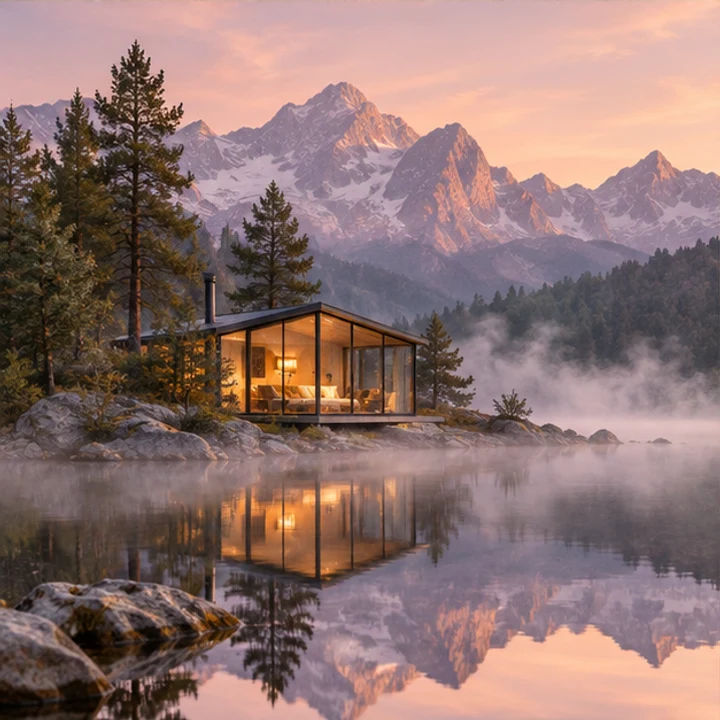
Creative reference: glass cabin beside a misty alpine lake at sunriseReference image
Motion directionSlow push-in · drifting mist

A glass cabin beside an alpine lake at sunrise. Mist drifts gently over the water and the reflection ripples. The camera slowly moves toward the cabin in one continuous shot, with warm natural light and a calm mood.
Try this prompt
Creative reference images, not MiniMax H3 video results.
CREATIVE STARTING POINTS

What would you like to bring to life?

Start with a shot you can describe. These original images illustrate a direction; the buttons load an editable prompt, without uploading an image or starting a generation.

Creative reference: glass cabin beside a misty alpine lake at sunriseSlow push-in · drifting mist
01

A travel moment

Let mist drift over a lake while the camera slowly approaches a cabin. Start with a quiet, continuous shot.

See the motion prompt

A glass cabin beside an alpine lake at sunrise. Mist drifts gently over the water and the reflection ripples. The camera slowly moves toward the cabin in one continuous shot, with warm natural light and a calm mood.
Try this prompt
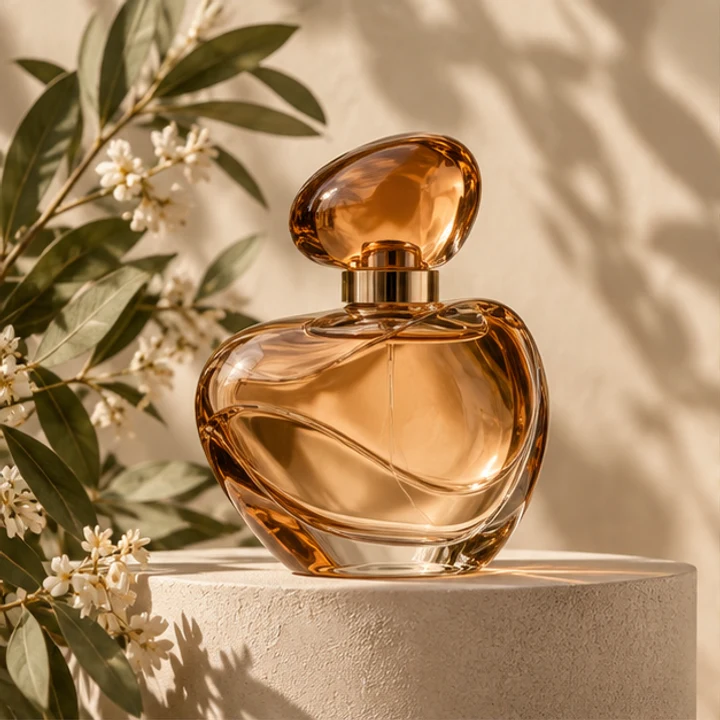
Creative reference: amber perfume bottle with flowers and warm lightGentle arc · soft reflections
02

A product reveal

Use a small camera move and changing light to draw attention to a product. Review labels and shape before using it.

See the motion prompt

An amber perfume bottle on a stone pedestal, with white flowers nearby. The bottle stays still while the camera makes a gentle arc. Soft sunlight moves across the glass. Keep the framing simple, with no extra text or new objects.

Try this prompt
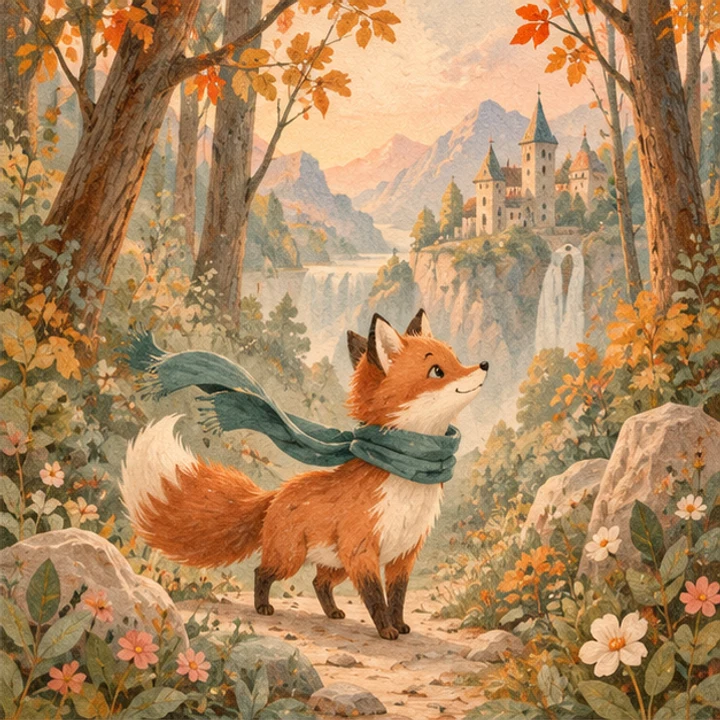
Creative reference: fox wearing a teal scarf on a woodland pathSmall step · moving scarf
03

A character moment

Give your illustrated character one small action. Avoid packing a whole storyline into a short clip.

See the motion prompt

A storybook fox wearing a teal scarf on a woodland path. The fox takes one small step and looks toward a distant castle. The scarf and autumn leaves move gently in the breeze. A still camera, watercolor texture, one continuous shot.

Try this prompt
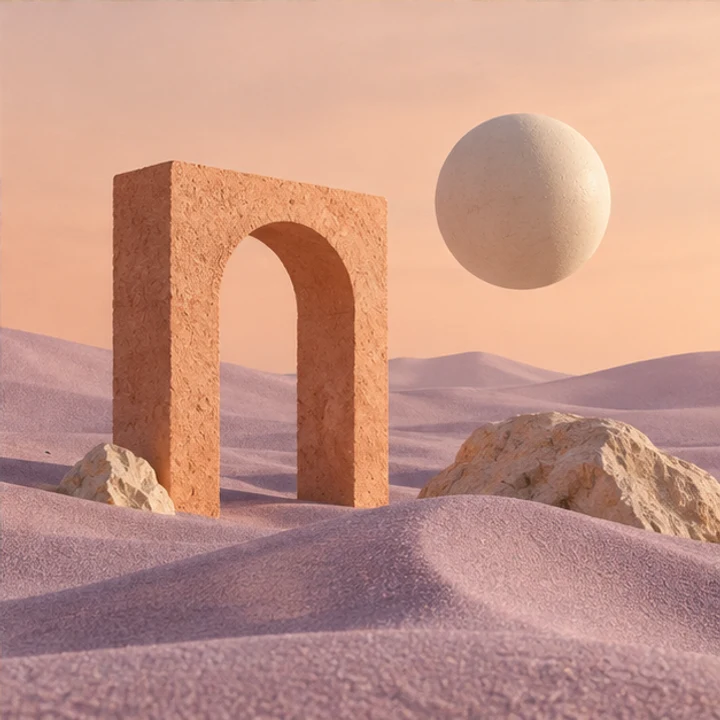
Creative reference: ivory sphere and an arch in a pastel desertSlow pull-back · drifting sand
04

An imagined scene

No source image? Describe a setting, a moving detail and a camera direction to explore text to video.

See the motion prompt

An ivory sphere floating beneath a stone arch in a pastel desert. Fine sand drifts gently while the camera slowly pulls back. Soft lavender and peach light, minimalist composition, one continuous shot.

Try this prompt

Creative reference images, not MiniMax H3 video results.

Two starting points. One creative space.

You do not have to switch modes. Adding an image makes it a reference; leaving images out lets you start with words.

Image to video: start from your photo

Use a portrait, a product photo, a landscape or artwork when the subject and visual direction are already clear. Tell the model what should move and what should stay still.

Bring my photo to life ↗

Text to video: start from an idea

Describe a new scene with a subject, a setting, an action and a camera move. Try one short shot first, then refine the part that needs changing.

Create from my idea ↗
MULTI-IMAGE REFERENCES

Give each reference a clear role.

Add up to 9 images in order. One useful image is better than several conflicting ones. Explain the relationship between them instead of asking for a slideshow.

Bring my photo to life ↗
01

Subject

A clear person, product or character. Say which features matter.

02

Setting

The background or composition you want the scene to use.

03

Visual style

A lighting, color or illustration reference that supports the same shot.

Use image 1 for the subject, image 2 for the setting, and image 3 for the color palette. Keep the subject still while the camera moves slowly forward.

References guide generation. They do not guarantee identity, exact details, a fixed first/last frame or a sequence in upload order.

See the motion prompt

Write the movement, not just the picture.

A useful starting prompt answers four questions. With images, focus on motion and explain what the references contribute.

  1. 01Who or what is in the shot?
  2. 02What changes or moves?
  3. 03How does the camera move?
  4. 04What light and mood do you want?

Keep one main action and one camera move. If the subject drifts, simplify the motion and references before trying a longer clip.

VIDEO MODELS & SETTINGS

Choose the model. Shape the shot.

Video models are a choice in the workspace. MiniMax H3 is the current integration; the options below describe what is open here.

Current model

MiniMax H3

Create my video ↗
ResolutionDurationGood starting point
480p1–15 sTest a simple shot
768p1–15 sExplore motion and framing
1080p1–10 sReview finer visual details

Landscape or portrait. No custom ratios or 4K in this integration. Credits = seconds × the selected resolution rate, rounded up; the workspace shows the configured total before submission.

From an idea to a video in three steps.

Start in the workspace; your prompt remains editable before you generate.

  1. 01

    Describe or add images

    Start with one subject and one action. Images are optional; add references when the look matters.

  2. 02

    Choose settings & check credits

    Select the model, orientation, duration and resolution. Sign in and confirm the total before generating.

  3. 03

    Review, download, refine

    Find your video in My Creations. Check motion and details, download it, or reuse the settings for a new attempt.

Keep creating in your own workspace.

Saved videos require the owning account to play or download. References are sent to the model provider. Failed generations return reserved credits. Deleting a record hides it from My Creations; administrative retention can still apply.

Before you make your first AI video

Do I need to upload an image?

No. A written prompt is enough for text to video. Add 1–9 references if you want images to guide the subject, setting or style.

Does adding several images make a slideshow?

No. The images guide one generated video. Explain their roles; upload order does not specify a frame-by-frame sequence.

What duration and resolution can I choose?

480p and 768p support 1–15 seconds. 1080p supports 1–10 seconds. Choose landscape or portrait; arbitrary ratios and 4K are unavailable here.

Is video generation free? How are credits calculated?

Video generation uses credits. The total depends on the model, seconds and resolution and is shown before submission. If pricing is not configured, generation stays unavailable; failed tasks return reserved credits.

Will the face, product or lettering stay exactly the same?

Exact preservation is not guaranteed. Use clear references and restrained motion, then check faces, hands, product shape, logos and lettering before using the result.

Can I create a full edited film or set exact start and end frames?

This tool generates one short clip per task. It does not currently provide a timeline editor, batch video generation or separate start/end frame controls.

Content reviewed October 9, 2026 · Current integration limits

YOUR NEXT STORY, IN MOTION

Give your next idea a little motion.

Start with a photo or a sentence. Choose the shot you want to try.

Create my video ↗