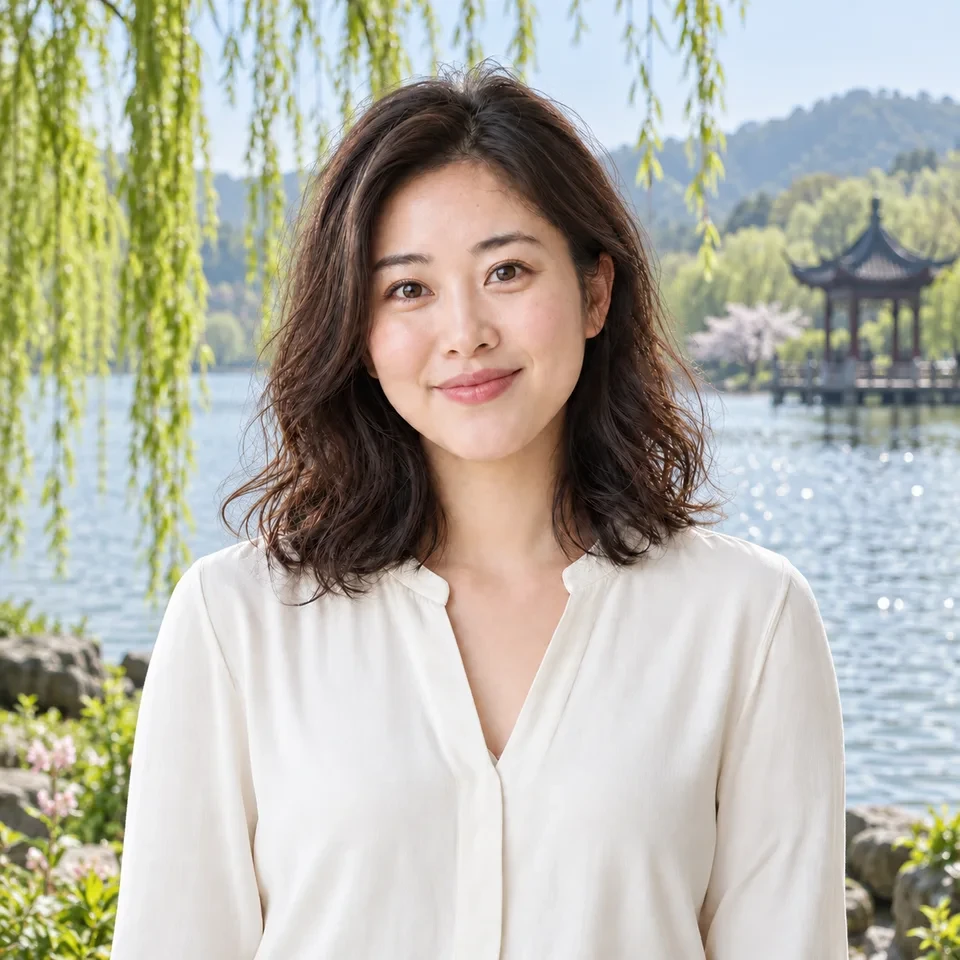
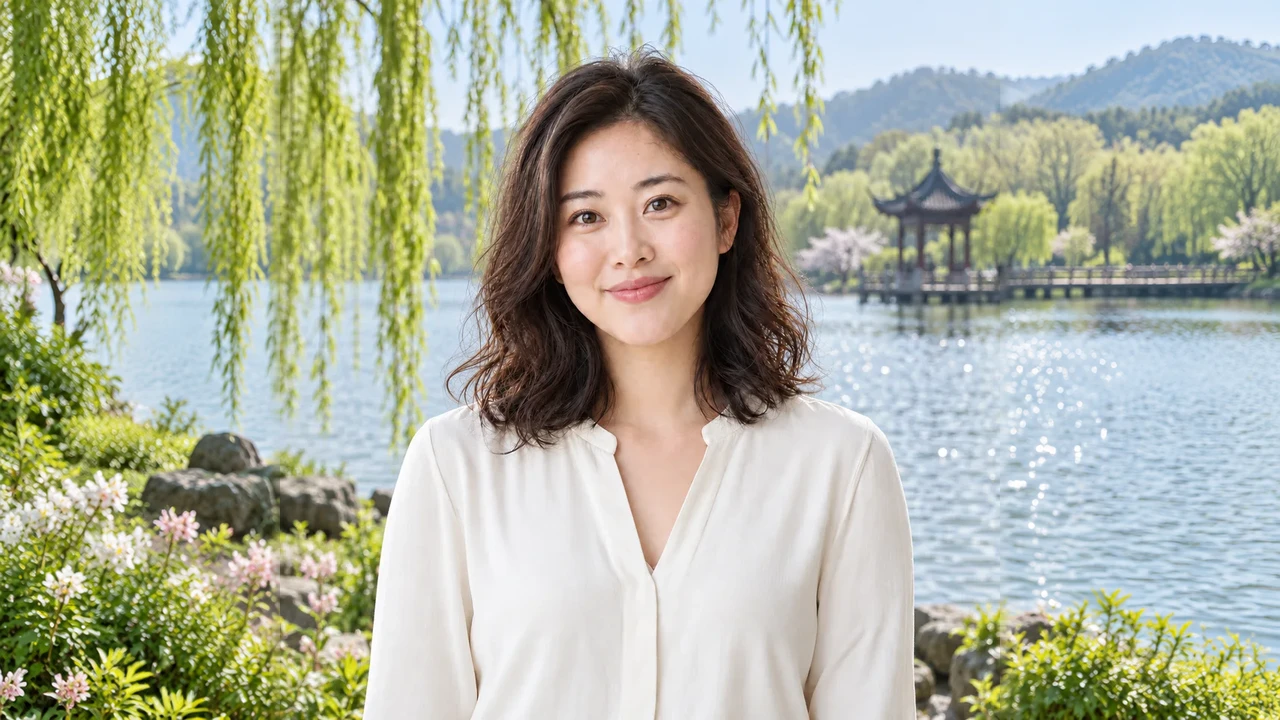
A wide cover from a portrait
Keep the portrait at its chosen size while extending the surrounding scene.

AI Image Extender
Turn a tight crop into a wider scene or a taller cover. Choose the canvas first and see exactly where new background will be created.
Expand my photo ↗Upload your photo → Preview the new canvas and cost → Generate, inspect and download
Same photo scale on both sides. The dotted frame marks the original; the new scene is outside it.
Keep the portrait at its chosen size while extending the surrounding scene.
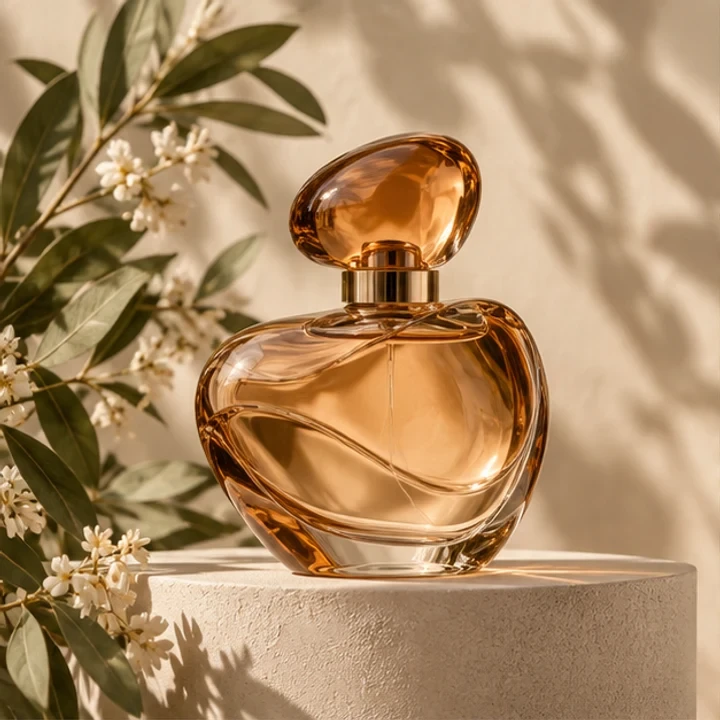
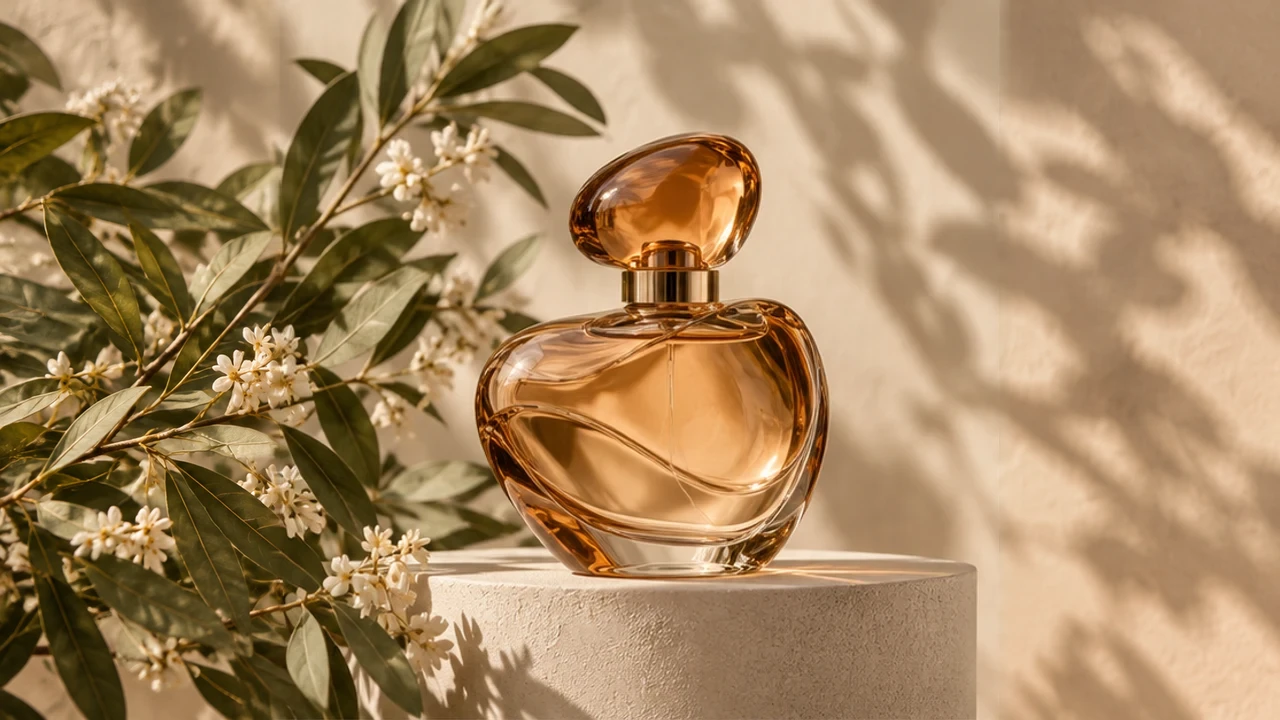
Leave space for a layout without stretching the product. Inspect labels and contact shadows.
We check composition before restoring your prepared photo at the previewed size. New areas are AI generated: check faces near edges, text, straight lines and light before using them.
The longest canvas edge is 1280 px. Uploads may be resized; this is not a higher-resolution copy of your original.
Expand my photo ↗An AI image expander creates new content outside a photo’s borders. Uncrop does not recover the exact scene that was cut off: it generates a plausible continuation. Drag the canvas to choose where the image extender adds background.
Expansion creates new content beyond the frame. Upscaling improves image size or clarity. Choose the clarity tool if you need a sharper version of the same crop.
The prepared photo is restored in a fixed region after composition checks. Upload preparation and resizing can change pixels from the original file, and the generated surrounding scene may still contain mistakes.
Only results that pass checks are saved. A retryable failure may use one backup attempt within the same charge. If both attempts fail, that photo’s credits are returned. You can retry failed photos separately.
Upload one or more photos directly, with no mode switching. Up to 40 photos use the same canvas settings, with separate statuses, failed-item retries and a ZIP of successful results.
The workspace shows the current credit estimate before you submit. Download access follows your account’s existing preview and original-download rules.
Use images you have permission to edit. Photos and results follow the account’s existing privacy and deletion controls. Privacy