Mild softness
Try to clarify the outline of a person or object, hair detail and edges softened by light blur.

AI restoration can reduce mild blur and noise while keeping the original width and height. Compare the result with your photo, especially faces, text and edges.
Drag to see how softness changes details in the same photo.
 Softened exampleClear source
The current tool focuses on mild blur and visible noise. Compare the real result with your upload in the workspace.
Try to clarify the outline of a person or object, hair detail and edges softened by light blur.
Reduce noticeable grain and uneven texture in a low-light or noisy photo.
The processed image retains the original width and height in pixels, with no 2× or 4× enlargement.
Process one image or a batch of up to 40. The full credit balance is checked before task submission.
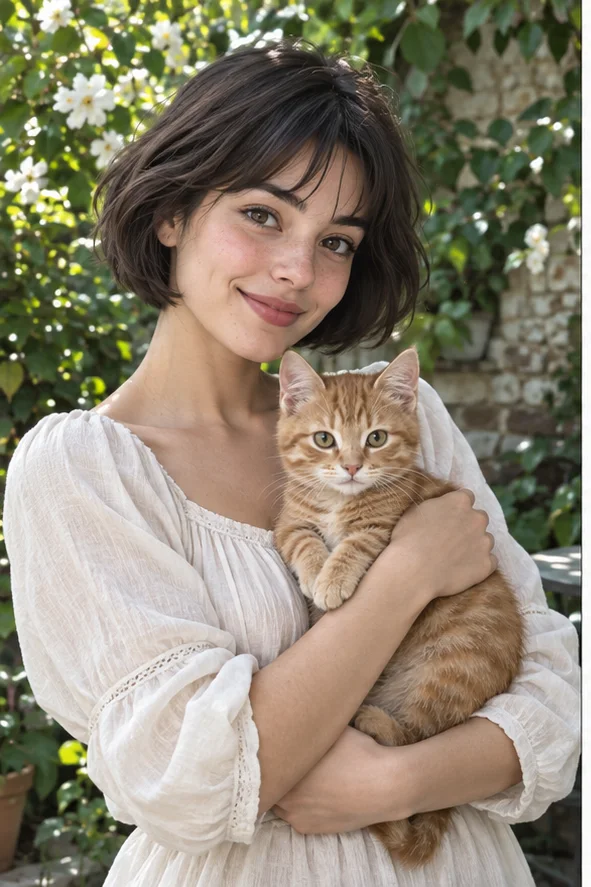
Drag each divider to inspect faces, fur, low-light grain and street details. The softened or grainy sides are simulated from existing photos; the clear sides are the original assets.
 Softened demoClear source
Look at facial outlines, brows and hair strands at the same crop.
Visual demo, not an output from this tool.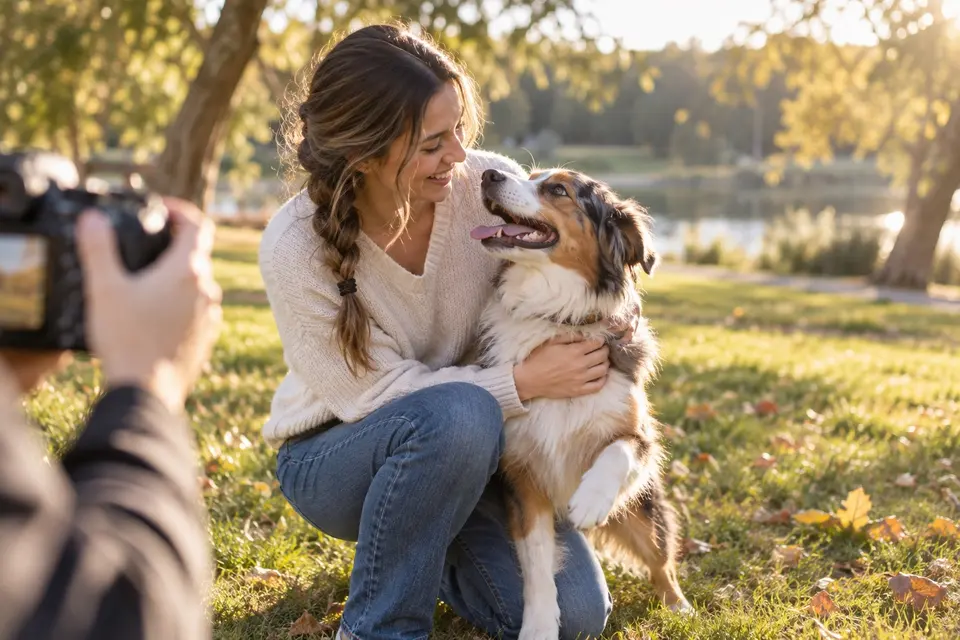 Softened demoClear source
Compare the eyes, nose and fine layers of fur.
Visual demo, not an output from this tool.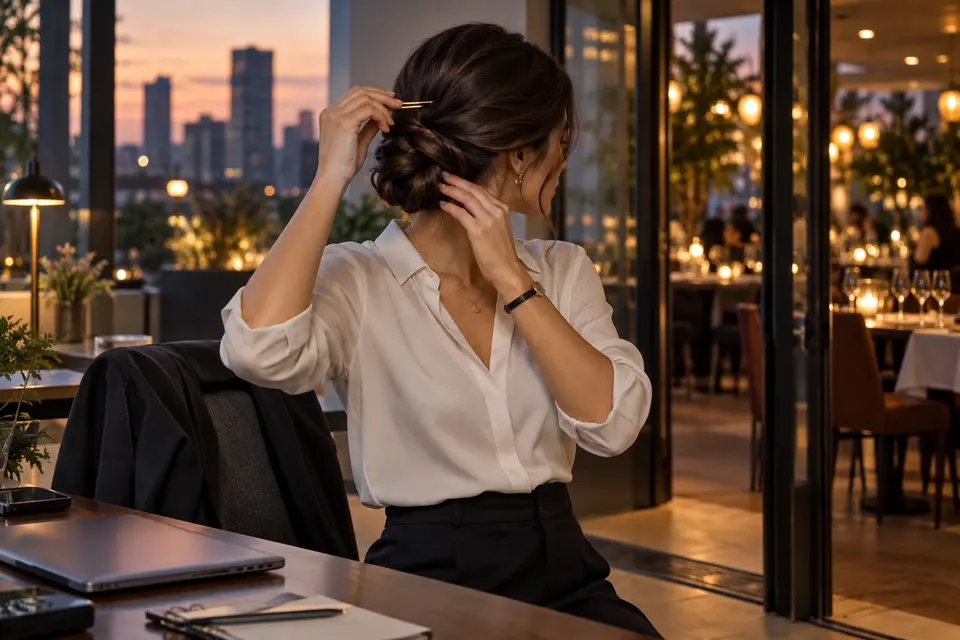 Grain demoClear source
Inspect texture in darker areas and the outline of the subject.
Visual demo, not an output from this tool.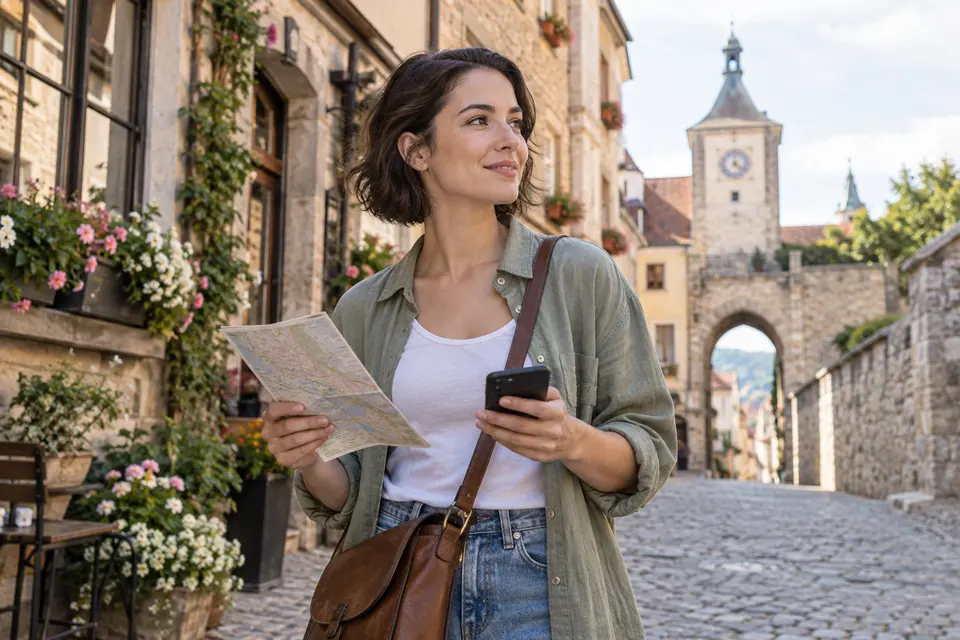 Softened demoClear source
Compare building lines, flowers and other small edges.
Visual demo, not an output from this tool.Explore five ways to check clarity before a photo goes into a listing, post, print, campaign or personal archive.
 Softened exampleClear source
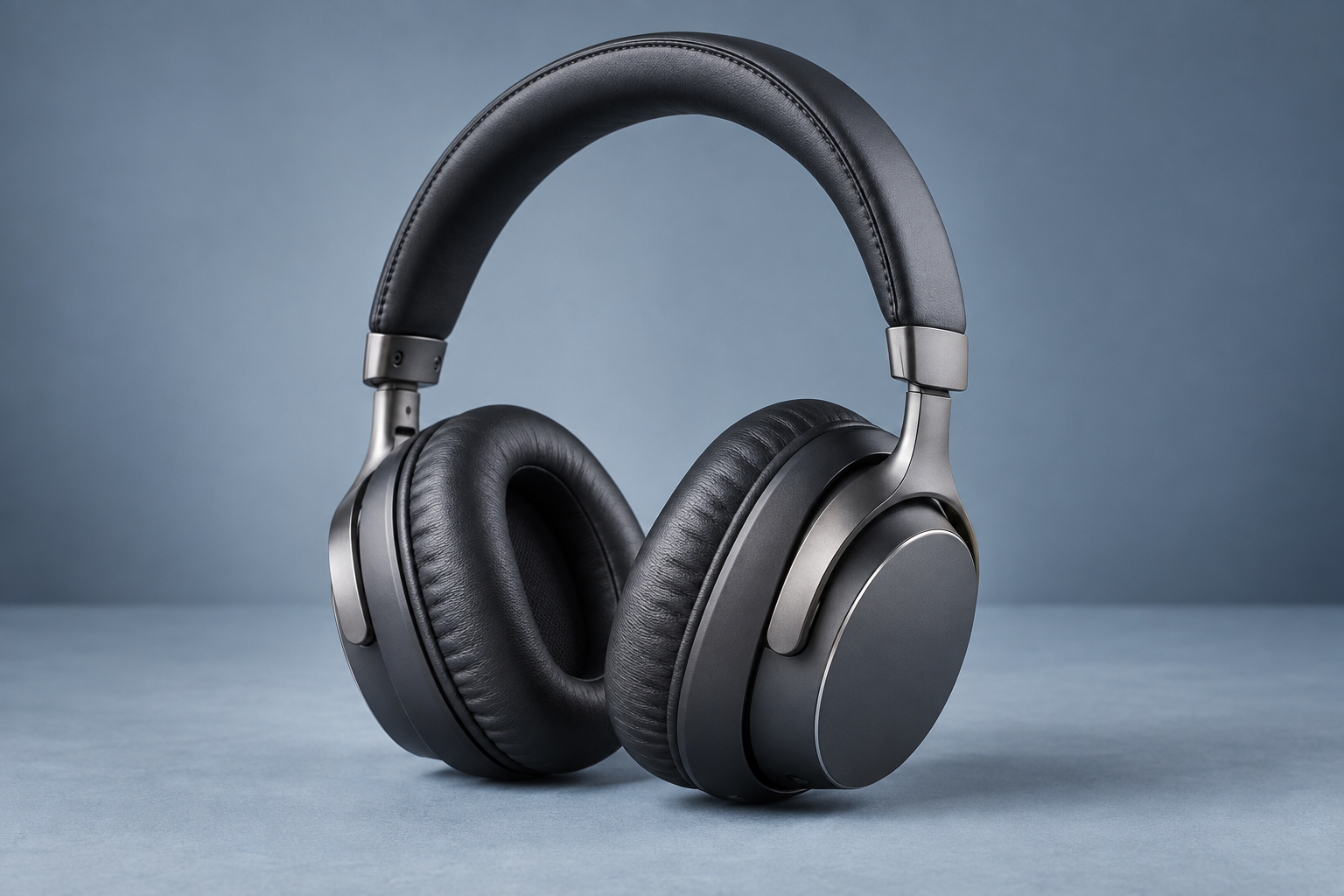
Look closely at the edges, material and stitching in a product photo. A clearer source helps you judge which details remain visible at listing size.
Inspect: material texture, seams and product outlineTry it with your photo ↗Choose the original file rather than a screenshot or repeatedly shared copy.
Check that the subject is recognizable and at least 64 px on each side.
After processing, inspect faces, text and straight edges at actual size.
Upload JPG, PNG or WebP, or choose a recent photo from your workspace.
Check the original dimensions, batch size and total credits before submitting.
Compare the original and enhanced result, then save or download.
Input: at least 64 px per side, up to 2.07 MP and 4 MB. Output keeps the same pixel dimensions. Check fine texture, text and facial features in the result.
No. The downloaded result has the same pixel width and height as the original.
Compare it with the original at full size, especially faces, text and straight edges.
1 credits per image. The full batch balance is checked before any processing task is created.
Yes. One batch can contain up to 40 images. Each image has its own status and download.
Inspect the result closely before using it for print, records or identity purposes.