
Image to video

Start with a photo. Imagine its next moment.

Make mist drift or give a character a small gesture. Upload your photo and describe one action or camera move. The image guides appearance; your words guide motion. Start with a clear shot and inspect the full clip.

1–9 reference images · One short clip per task · Credits shown before submission

AI resultMiniMax H3
An image reference and a playable H3 test
Image to video

An image reference and a playable H3 test

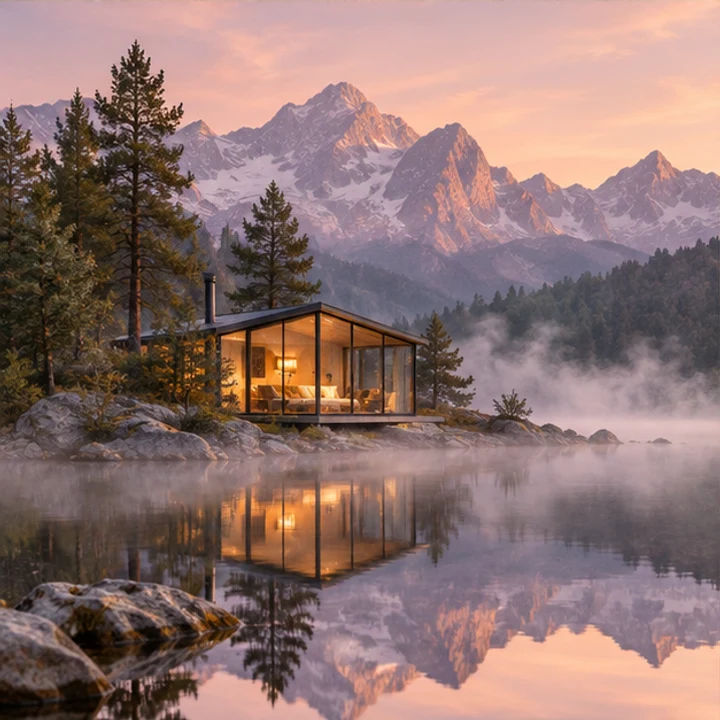
Site-owned AI reference image of a glass cabin beside a mountain lake at sunrise
01Source image

Our public AI scene reference and a real MiniMax H3 local test from October 9, 2026. That early test repeated the same image across nine reference slots; it is not evidence of nine different subjects working together. The historical clip is about 1.6 seconds; current selectable lengths start at 2 seconds. One result does not guarantee future output.

Try this starting point ↗

From your photo to a checked result

  1. 01

    Upload the image you want to start from

    Add a JPG, PNG or WebP in the video composer, or choose an image from your own saved work. The page does not upload the demo for you.

  2. 02

    Describe one action and a camera direction

    Say what moves, how it moves and what should stay still. Choose portrait or landscape, resolution and clip length in the workspace.

  3. 03

    Review credits, then watch the whole clip

    Confirm the current cost and balance before submitting. Open the saved video in My Creations and check every moment before downloading or sharing.

Give the photo a motion plan

01

One clear image is a useful first attempt

Choose a visible subject, clean edges and enough background to understand the scene. A blurry face or tiny product label does not become reliable merely because the picture moves. Keep the original, and start with a small action that fits what the image shows. Match the intended portrait or landscape format before committing to a shot.

02

Describe motion instead of repeating the picture

The image already supplies many visual details. Use the prompt for a slow camera push, gently moving mist or one small gesture. Conflicting camera directions and several rapid actions can make a short clip harder to read. Say which elements should remain still, then judge whether they actually did; wording does not lock pixels or identity.

03

Several references guide one clip, not a slideshow

You may add up to nine images and explain which supplies the subject, setting or style. More references are not automatically better. Their order does not define a frame-by-frame sequence, and this workspace has no separate start/end-frame controls. The displayed test reused one image, so it does not demonstrate a multi-subject combination.

04

Choose duration for a manageable moment

Current H3 choices are 2–15 seconds at 480p/768p and 2–10 seconds at 1080p, with portrait or landscape framing. One task produces one clip. The selected duration and resolution determine the credit estimate. This is not a timeline editor; product lettering and unchanged facial detail are not guaranteed. Review motion, shape, edges and any audio before using the result.

Image to video

An editable starting prompt

This is an editable motion idea, not the original request recorded for the test clip. The button loads the existing lakeside example prompt and selects H3. Add your own reference image; no demo image is uploaded and no task starts automatically.

A glass cabin beside an alpine lake at sunrise. Mist drifts gently over the water and the reflection ripples. The camera slowly moves toward the cabin in one continuous shot, with warm natural light and a calm mood.

Try this starting point ↗

Check before keeping the result

  • The intended subject moves in the requested direction without distracting jumps.
  • Faces, hands, labels and object shapes remain suitable for the intended use.
  • The framing, beginning and ending work as a short shot.
  • The entire clip and any audio have been reviewed before sharing.

Review the cost before generating

Sign in and check the current estimate and balance in the workspace. Each submission uses credits. An insufficient balance or a failed balance check stops submission; failed tasks return their reserved credits. A new attempt has its own cost.

References and instructions are sent to the generation provider. Saved records can be deleted from your account; storage and retention details are in the privacy policy.

Before you start

Do I have to switch to an image mode?

No. The composer selects image-to-video when you add references. Without an image it becomes text-to-video. Keep at least one reference attached for this task.

Can I animate a portrait, pet or illustration?

Those can be creative starting images for the same workflow. Start with a simple action and compare the subject with the original.

Can nine photos become nine scenes?

No. They are references for one generated clip, not nine scenes or a timed slideshow. Use a video editor elsewhere if you need an exact sequence.

Can I make a long video or revise this result for free?

Each task creates one short clip, and a new submission has its own displayed cost. This tool does not include timeline editing, automatic long-video assembly or unlimited free revisions.

Page and workflow reviewed October 14, 2026. Example provenance is described in the captions.

Start with a photo. Imagine its next moment.

1–9 reference images · One short clip per task · Credits shown before submission

Make a video from my photo ↗