Turn a meaningful photo into a woodcut-style illustration
Want a portrait or pet picture with bold ink shapes, pale carved-looking lines and a limited palette? Start here before commissioning a card or printing a keepsake. The button opens Woodcut in our photo-filter workspace. It creates a digital image that resembles a relief print, not a carved block, vector cutting path or ready-separated printing plate. Look at the face and empty spaces in the example, not only the attractive paper texture.
Style illustrations, not verified before-and-after outputs from the live tool. They show a visual direction; your photo may produce different colors, likeness and details.
Choose woodcut when shape and contrast should carry the portrait
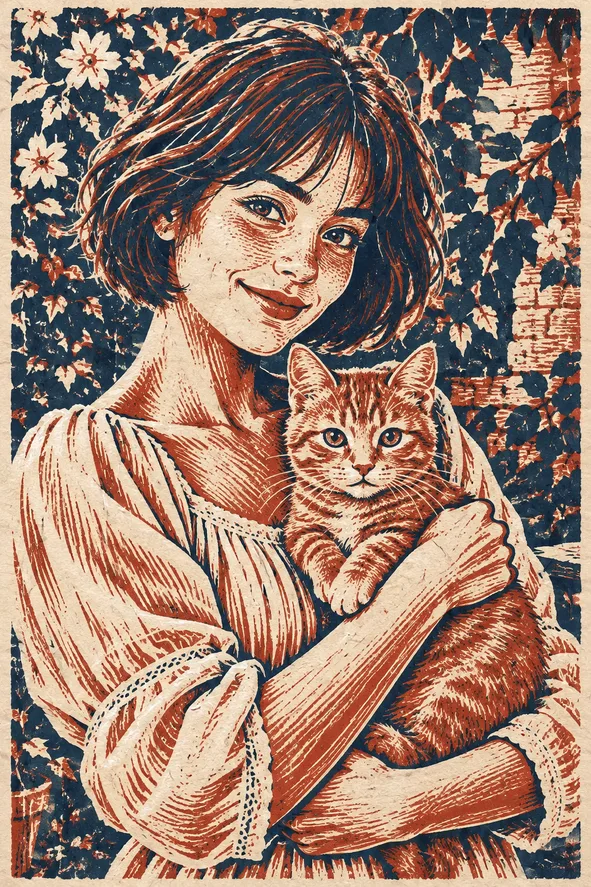
This direction trades fine photographic tones for strong dark masses and lighter marks. It can suit a personal card, a pet keepsake or an illustrated portrait when you like a graphic print feeling. It is less useful for preserving exact colors, delicate jewelry or a detailed product label. Our example is a multicolor interpretation; the preset does not promise exactly three inks or a specific historic printing process. Decide which facial and animal features must survive the simplification before you generate.
Carved-looking marks, shaded graphite, or flowing color?
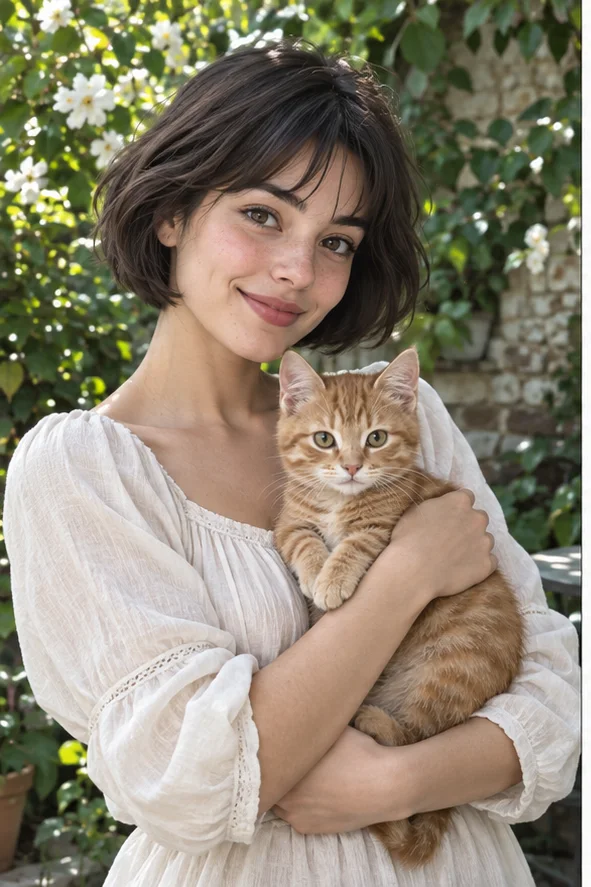
Our owned references show different ways to simplify the same kind of woman-and-cat subject. They are illustrations of media choices, not a same-photo performance test or customer outputs.
Woodcut: dark masses and pale cuts
Dark regions organize the hair and clothes while pale hatch marks describe texture. The limited colors give the picture a printed character. Choose it when a bold silhouette matters. Watch whether eyes disappear into a dark patch or fine marks close up at small sizes. There are no separate ink-count, hatch-width or print-plate controls here.
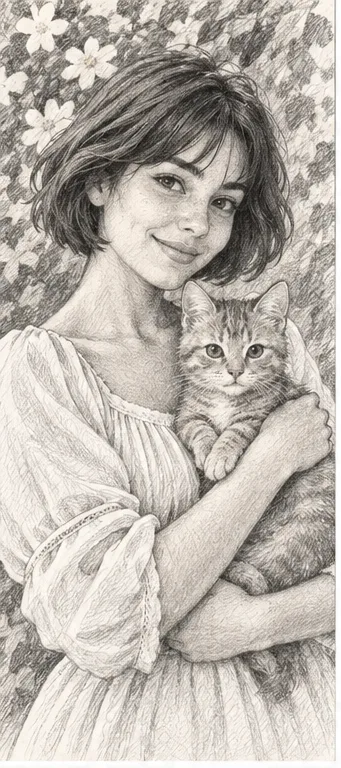
Graphite marks describe gradual light and dark instead of large solid printed areas. Compare this if facial shading matters more than a poster-like silhouette. The gray regions may not stay clean on cheap paper or after heavy compression. A pencil result is still a redraw, not an exact tracing or a blank coloring template.
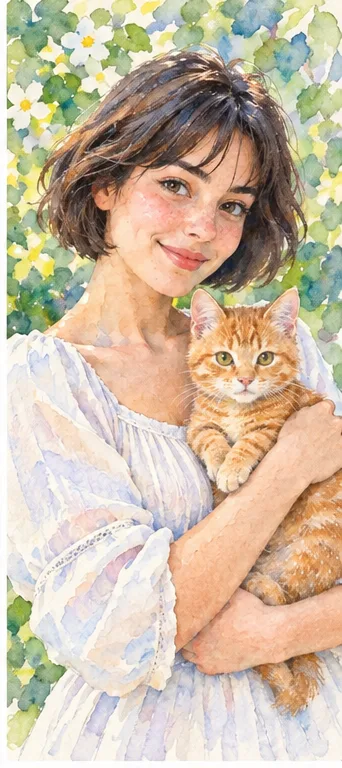
Paint-like washes and flowers soften the composition. Choose it if you want color atmosphere rather than carved-looking contrast. Small details and boundaries may blend, which is a different trade-off from the woodcut's dark shapes. Neither effect prepares a professional print separation or guarantees the source colors will match a physical print.
The image has to remain readable after many tones are compressed into fewer visual shapes.
Separate face, hair and background Choose a source where the subject is not lost against an equally dark wall. Leave margin around ears and shoulders. Dense foliage behind dark hair can become one continuous ink-like mass. If the source has deep shadows across both eyes, try a clearer photograph rather than expecting decorative texture to recover missing information. Keep the unmodified original for checking.
Keep essential writing outside the redraw For a birthday card or memorial illustration, reserve space for the exact name and date in your own layout. AI can invent letters on a collar tag, book or sign. Add typography separately after selecting the image. If a product's label must be readable, a stylized print may be the wrong asset even when the overall shape looks convincing.
Inspect the marks at the size you will actually use
A striking large preview may behave differently as a small icon or on paper.
Look for filled eyes and merged fingers Review pupils, the mouth, fingers and the pet's paws. An eye can become an empty dark mark, and hatch lines can conceal an extra finger. Compare familiar coat markings, but accept only changes that fit your purpose. Zoom out to the planned card or avatar size: the face should read before the viewer studies the texture.
Check light gaps and busy patterns Pale gaps between limbs or around whiskers may vanish when a platform reduces the file. Patterned clothes can compete with the face. Download the actual result and inspect it after the intended crop, not just in the generator. This tool does not let you repair individual carving-like marks; another source or a different medium may be more useful than repeated random attempts.
Use a print-like image without promising a print process
A digital style and a manufactured relief print have different delivery requirements.
Test a small paper proof first Confirm the downloaded pixel dimensions and format, then check a proof on the paper and printer you plan to use. Large enlargement cannot create absent line detail. Paper tint, ink and display brightness affect the apparent palette. For a paid edition, discuss resolution, rights and color conversion with the supplier instead of assuming a screen preview is production approval.
Separate illustration from carving or engraving There is no SVG, laser-ready path, cutter-safe line thickness, registration setup or color-separated plate in this flow. A craftsperson would need to redesign and test it for a real block. Do not treat an AI picture as safe machine instructions. Obtain permission for portraits and other source material, and label a digital illustration honestly rather than claiming it is a hand-carved original.
01Open Woodcut and upload The button preselects the woodcut direction. Start with a permitted, clearly framed portrait or pet photo, not a screenshot filled with text.
02Confirm style and current total Check the workspace's selected style, credit charge and requested results before generating. Additional photos or effects increase the request count.
03Review before layout or printing Inspect face, gaps and hatching. Save the accepted image, add exact text elsewhere and try a small proof before ordering a gift.
Print appearance is not print-ready geometry
AI may change anatomy, identity, markings, lettering and palette. The result is a static raster illustration, not a physical woodcut, vector file, cutting plan or separated press plate. Exact likeness, ink count and consistent multiple-image editions are not guaranteed. Our examples are owned illustrative references, not authenticated customer results.
Use a photo you can share with the service
Upload only photos you may authorize the service to process, with permission from other people shown. Avoid sensitive documents. Generation sends the image for processing, not local-only editing. Finished work can be viewed and downloaded in My Creations; removing a completed record hides it from your user history but is not a promise of immediate erasure from administrative records, providers or backups. Read the privacy policy and contact [email protected] for a data-deletion request. Review images before sharing, especially when another person or a child appears.