For a page you can actually color, look for clear black contours and generous white spaces—not merely a black-and-white sketch. Start with one sharp photo, choose the coloring-page style, then inspect the result before saving or printing it.
Illustrative style examples, not verified outputs from your photo. AI may redraw details differently.
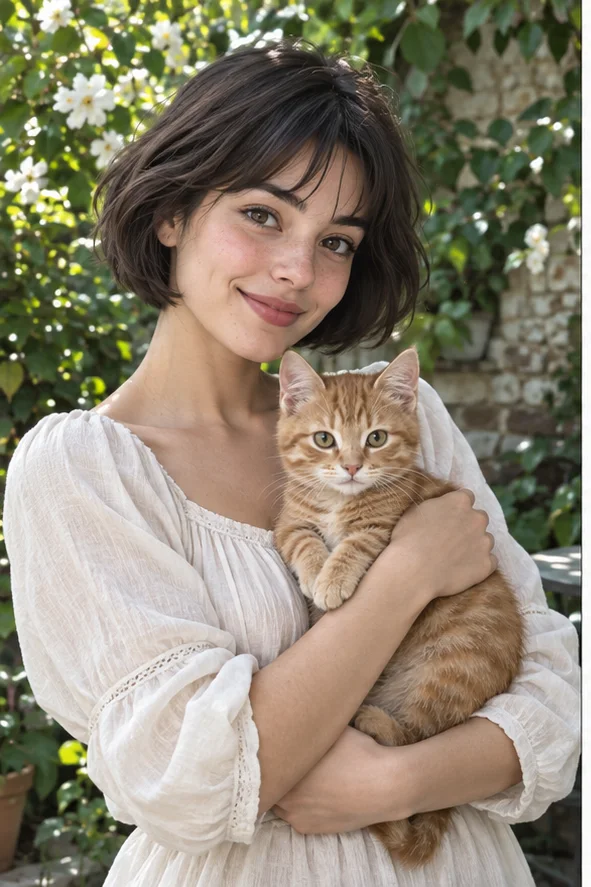
Example source photo
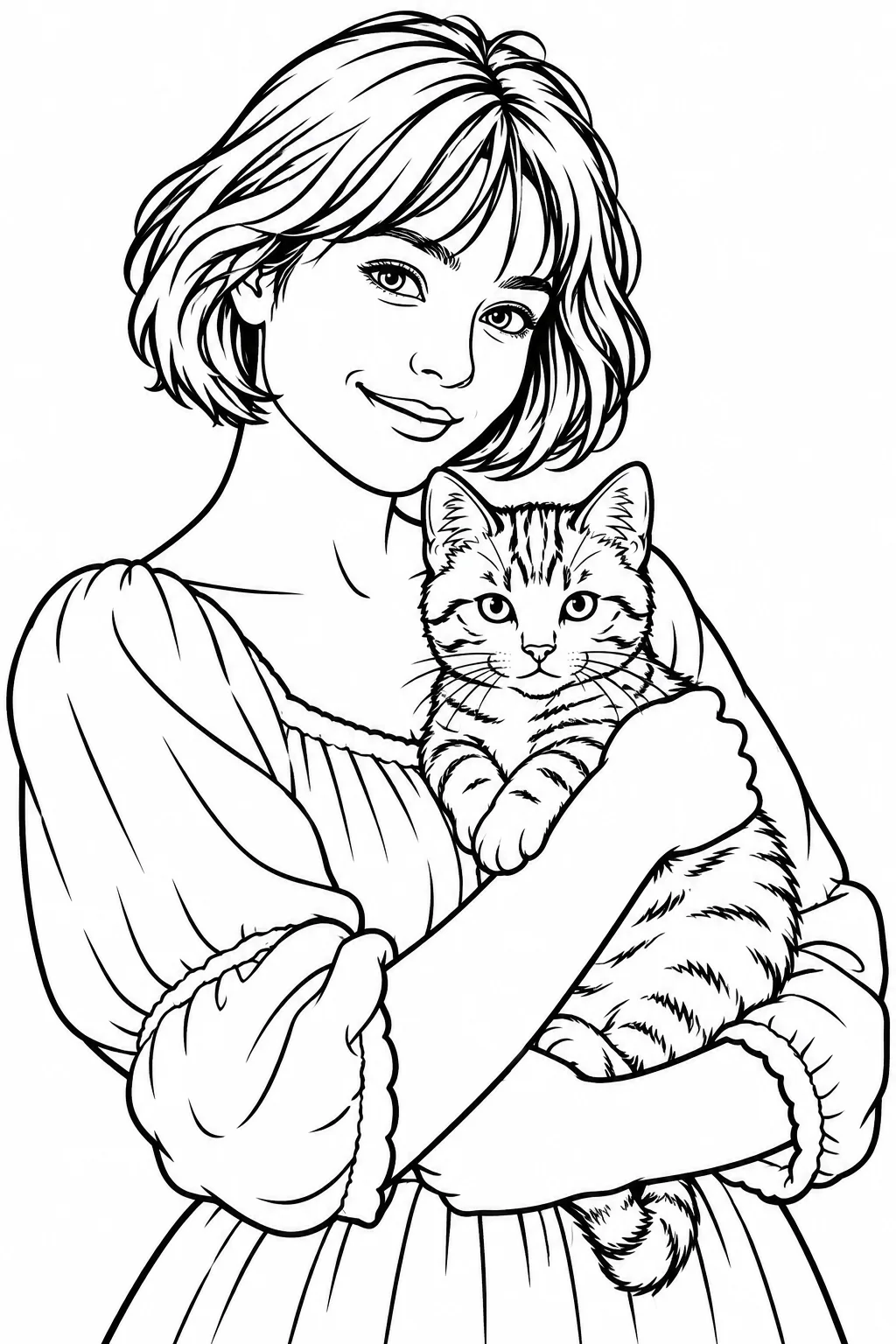
Coloring-page style example
What makes a photo work as a coloring page?
A good candidate has one recognizable subject, edges that separate it from the background, and enough open space that a pencil or crayon has somewhere to go. In the example, the woman's face, sleeves and cat remain readable after color and most background detail are removed. The original photo is a reference, not a promise of identical facial features or markings. If your goal is a delicate portrait drawing rather than an activity to color, choose the line-art filter instead.
Choose the result you actually need
The same subject can become three different kinds of drawing. Only the first is designed around blank regions for coloring. The other two may look attractive but require more cleanup if you plan to add color by hand.
Coloring page
Use for an activity with open white regions and stronger black outlines. Check the face, hands and small objects: if contours are broken or the white gaps are tiny, try a simpler source photo. This style does not add color numbers, an editable vector file or a ready-made PDF.
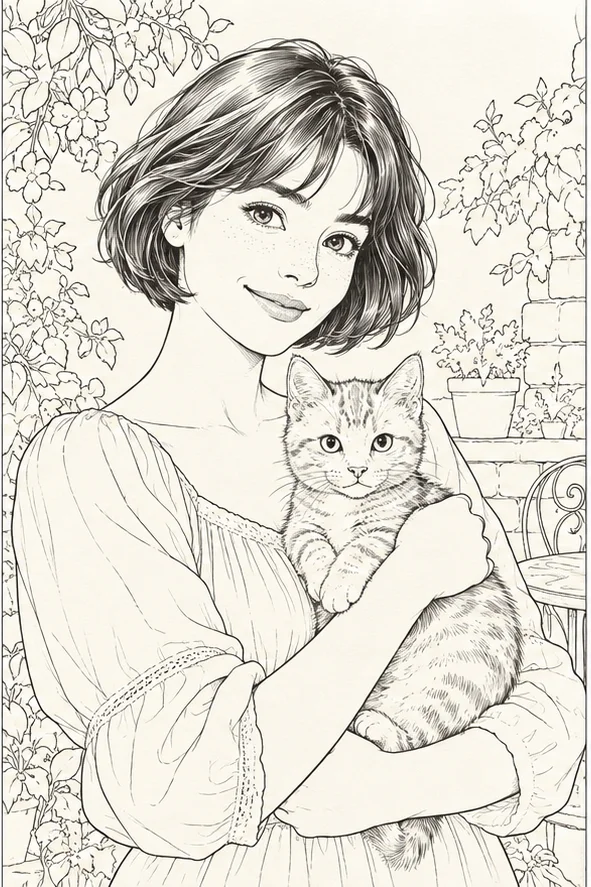
Use when you want a more detailed portrait outline for display or tracing. The leaves, hair and fabric can carry many fine strokes; that detail may be tiring to color, especially on a small print. It is not a substitute for the coloring-page style when broad blank regions matter.
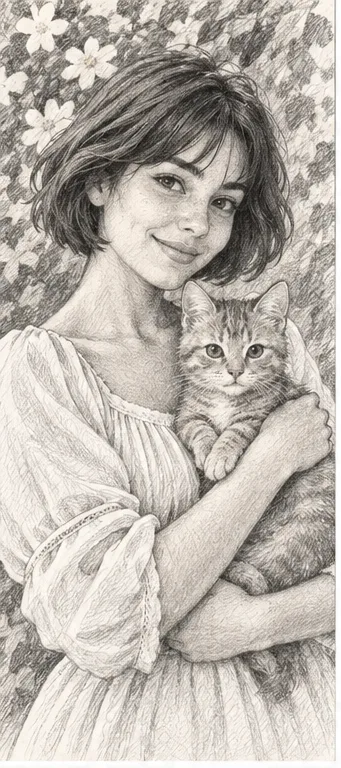
Use for a shaded keepsake or drawing reference rather than a blank coloring activity. Graphite tones describe volume, but gray shading takes up the white space you would normally fill with color. Do not mistake a grayscale sketch for a clean coloring sheet.
Illustrative style examples, not verified outputs from your photo. AI may redraw details differently.
Pick a source photo before you upload
The choice of photo matters more than the promise of an automatic filter. Check these four things before spending credits:
One main subject: a pet, person, flower or familiar object is easier to follow than a crowded party or a room full of tiny items.
Clear boundaries: choose a sharp, well-lit image where the subject does not disappear into a similarly colored background.
Useful crop: leave the whole subject in frame and some margin around it; a cut-off ear, hand or flower petal cannot reliably be reconstructed.
Age and medium: if a child will use thick crayons, favor large simple regions; for fine pencils, a little more detail may be welcome. The current tool has no age or line-width slider, so change the source photo if the result is too busy.
01Open the studio with the coloring-page style preselected. Upload one JPG, PNG or WebP photo that you have the right to use.
02Review the selected style and the credit total shown by the studio before generating. The displayed cost, not an example page, is the purchase decision.
03When the image is ready, inspect the outline at normal size and download it from the result or your generation history. If details changed too much, try a clearer source photo.
Check it before you print or share
A style preview cannot tell you whether your particular output is ready for paper. Open the downloaded image and make these checks yourself:
Are the important shapes recognizable, especially faces, paws, hands and the object that made the moment worth keeping?
Are colorable regions reasonably closed and large enough for the intended pen or crayon? Tiny hair and fur strands may need a different photo.
Are there stray lines, changed letters or unwanted background objects? Do not rely on AI to preserve text or personal identity exactly.
Does the image fit your paper and printer settings? The tool downloads an image; it does not supply a PDF, SVG, print bleed or a guarantee of print resolution.
What the AI cannot guarantee
This is an AI redraw, not deterministic edge tracing. It can simplify or invent outlines, alter a face or pet marking, leave open contours, and produce a composition that needs another attempt. The example on this page is an illustrative style image, not evidence that every uploaded photo will yield a print-ready activity. We do not offer manual line-width or background controls in this flow, and this is not a photo-to-color-by-number tool.
Your photo and result
Use a photo you may upload and avoid sensitive documents or images you do not have permission to use. The studio needs your image to request a result. Completed work appears in generation history, where you can view, download and delete the record and its associated images. Review the result before sharing it, especially if it depicts another person or a child.
Explore related choices
Want a portrait drawing instead? Compare the fine line-art and pencil styles above, or browse the full photo-filter catalog before choosing.