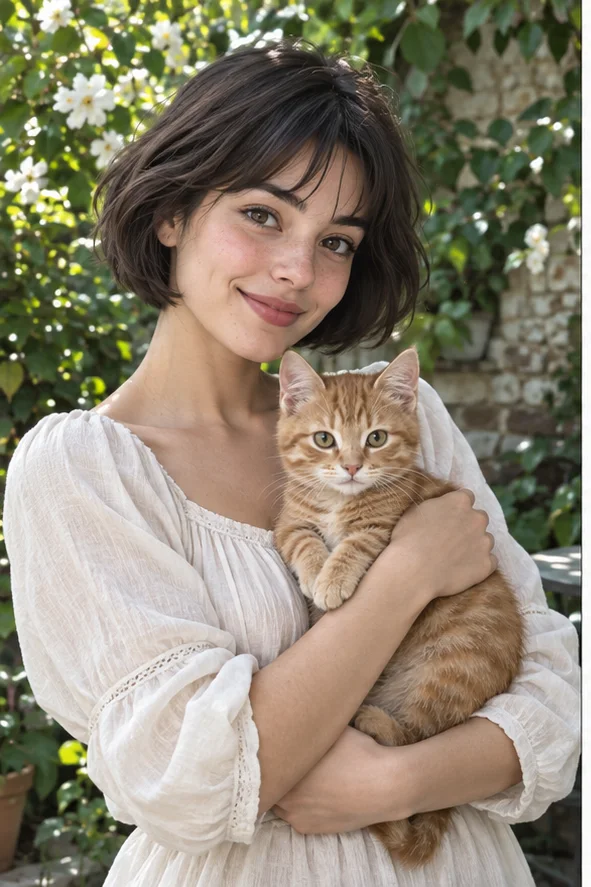
A strong silhouette, flat color blocks and printed dots make a face readable at a glance. Start with a portrait or a person holding a pet, then open the workspace with Pop Art selected. This is a single-image art treatment, not a four-panel poster maker or a comic-story generator.
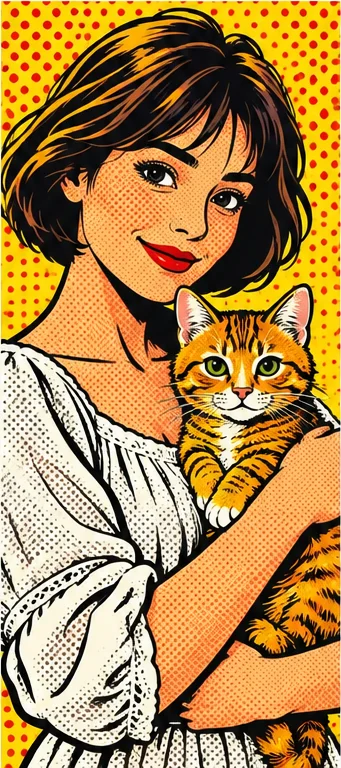
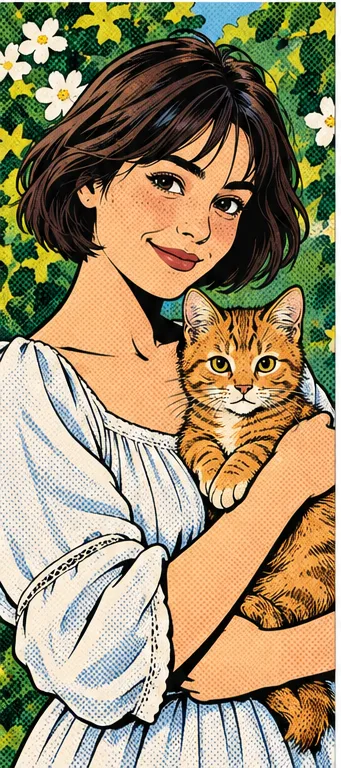
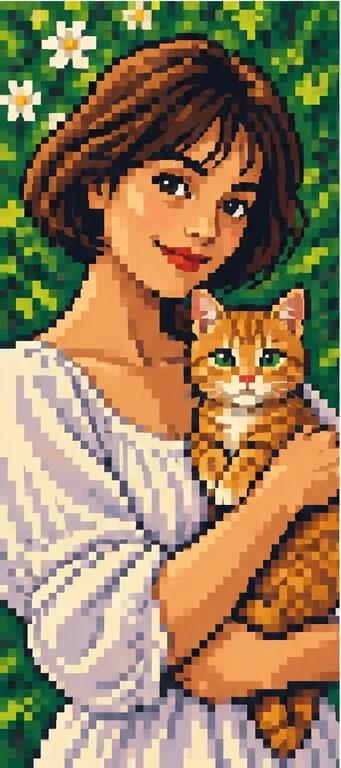
Style illustrations, not verified before-and-after outputs from the live tool. They show a visual direction; your photo may produce different colors, likeness and details.
Choose pop art for graphic impact, not subtle retouching
Use this direction when you want an expressive profile image, a playful pet portrait or a bold picture for a personal invitation. The recognizable visual language comes from simplified shapes and repeating dots, not merely increased saturation. If you need exact skin tones, legible product labels or a realistic professional headshot, choose a different task. The workspace requests an AI interpretation, so facial details, clothing and the surrounding scene can change.
Pop art, comic or pixel: what should change?
Compare the visual language before uploading. These are our editorial illustrations, not a controlled test of three services or a guarantee that your photograph will receive the same palette. Pick the treatment by what should remain readable at the final size.
Pop art: dots and color blocks
Pick this for a single striking portrait. Broad yellow, red and black areas separate the person from the background, while dots suggest printed shading. The illustrated cat remains a recognizable second subject; that is a useful detail to inspect if you upload a pet portrait rather than assuming every small subject will survive.
Choose comic when outlined facial expression and drawn shading matter more than the print-dot palette. A comic-style still image does not automatically include speech bubbles, several panels or a coherent story. Add your own words and page layout in a separate editor if an invitation or strip needs them.
Choose pixel art when blocky edges and a game-like appearance are the point. Small whiskers, patterned clothing and pupils may merge into the grid. It is a different simplification from pop-art dots: compare the face at normal avatar size before deciding which treatment preserves the expression you care about.
The most useful input has a clear focal subject and enough room around it. A complicated background competes with the graphic color blocks.
Keep the whole face and pet in the frame Use a sharp photo with eyes visible and hands, ears and the hair outline inside the image. Avoid a crop that already cuts off the cat's head: the treatment cannot reliably reconstruct the missing reference. Leave a little margin so you can later crop for a square avatar without sacrificing the intended subject.
Prefer clean lighting over elaborate scenery A bright face against a distinct background gives you a better basis for judging the result. Very dark eyes, reflective glasses and several overlapping people make the important features harder to distinguish. You do not need to stage a comic costume; a familiar everyday portrait is enough to explore graphic styling.
Decide what the portrait needs to communicate
The same dotted illustration can work well as a fun profile picture and badly as a literal product reference.
For an avatar, check expression at small size Reduce the preview to the size people will actually see. The face should still read as the intended person, and strong background dots should not overwhelm the eyes. If a pet is part of the idea, check whether it remains distinguishable after the square crop rather than judging only the full-height illustration.
For a card or poster, reserve space separately Use the image as artwork and place wording in a layout tool. This preset does not provide editable print layers, a guaranteed four-color separation or automatic repeated portraits. Before ordering a print, inspect the downloaded dimensions and request the printer's size requirements; a bold preview does not establish print resolution.
Inspect the places where graphic simplification matters
A lively result is useful only if its visual changes fit your intended use.
Look at eyes, outlines and overlapping hands Compare the face with your input and examine fingers, the cat's ears and the boundary between hair and background. Heavy outlines can hide odd shapes at first glance. Keep the original separately, and use another input if a key feature becomes ambiguous instead of treating the illustration as faithful photographic evidence.
Do not confuse dramatic color with accurate color The yellow-red example intentionally changes the visual palette. Skin, clothing and product colors can be reinterpreted, and you cannot use it to verify a real hair dye or an item's true appearance. A softer illustration or the original photo may be more appropriate when recognizability matters more than graphic impact.
01Choose one readable photograph Upload a photo you are entitled to use, with the main subject and any pet clearly visible. Do not upload private photographs of other people without their permission.
02Start with Pop Art selected The button opens the photo-filter workspace with this style selected. Review the current request and credit total before submitting; the current filter price is 2 credits per output, not a promise of unlimited free generations.
03Review, download and crop for your use Inspect the finished image before downloading, then check it in the intended avatar or layout. A crop is a separate presentation choice and can remove important details even when the full image looks clear.
What this page does not promise
This is a raster art interpretation, not vector tracing, a four-panel collage builder, an identity-preserving retouch or a commercial print guarantee. It does not grant permission to use someone else's photograph or reproduce a protected character. Generated details may differ from the input. Credit, export and deletion information should be checked in the live workspace and privacy policy before a sensitive upload.
Use a photo you can share with the service
Upload only photos you may authorize the service to process, with permission from other people shown. Avoid sensitive documents. Generation sends the image for processing, not local-only editing. Finished work can be viewed and downloaded in My Creations; removing a completed record hides it from your user history but is not a promise of immediate erasure from administrative records, providers or backups. Read the privacy policy and contact [email protected] for a data-deletion request. Review images before sharing, especially when another person or a child appears.