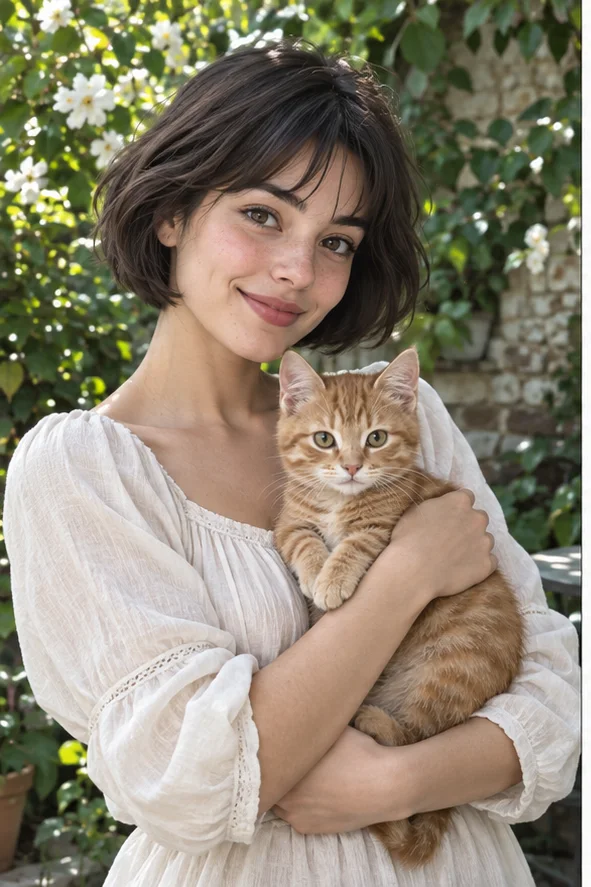
Turn your photo into a softly textured pastel drawing
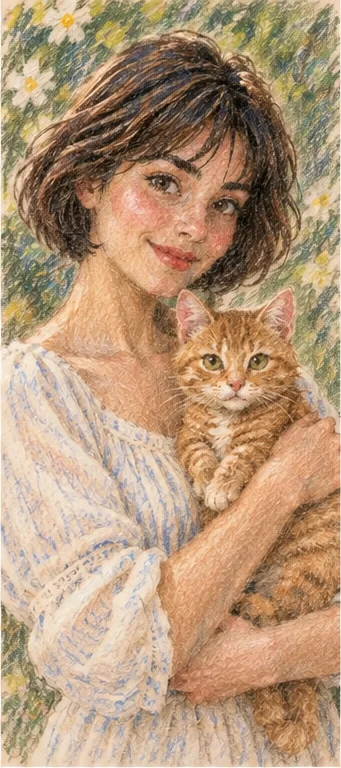
Pastel drawing is about dry pigment, visible strokes and paper grain—not simply making a photograph pale. Explore a portrait with gently drawn edges while keeping the face or pet as the focal point. Start with the Pastel preset selected and decide whether the illustration fits an avatar, keepsake or personal card.
Style illustrations, not verified before-and-after outputs from the live tool. They show a visual direction; your photo may produce different colors, likeness and details.
Choose a drawing medium, not a pastel-colored photograph
Use pastel when you want soft edges and dry, layered marks rather than a glossy photo or wet paint. A readable face, pet or simple flower arrangement gives you something concrete to inspect. Pale color grading preserves photographic texture; this task reinterprets it as drawing. If exact facial geometry, product color or printed lettering must remain unchanged, keep the original photo or choose an editing task that suits those requirements.
Dry pastel, watercolor or pencil?
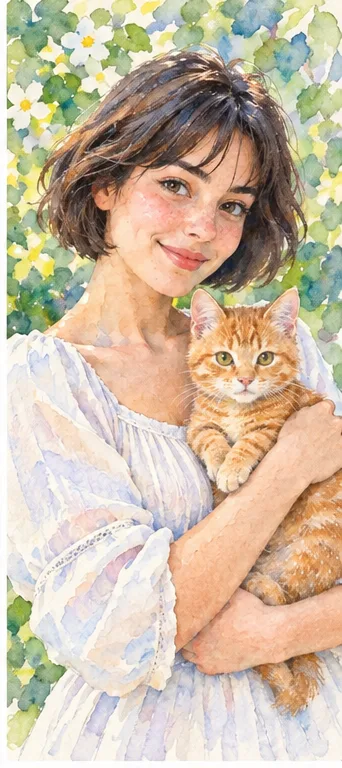
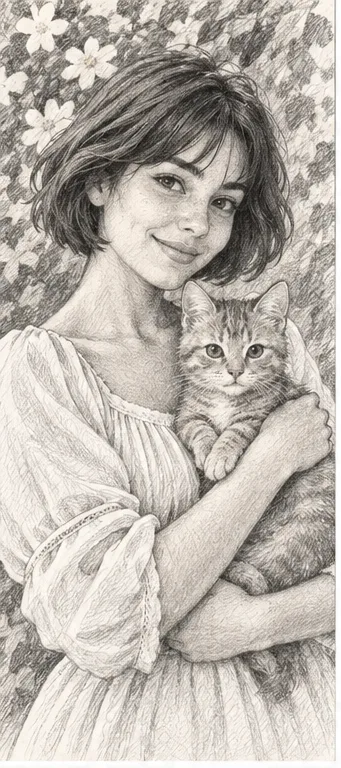
All three can look gentle, but their marks do different work. The illustrations below explain the medium, not a same-photo quality ranking. Pick by the surface and edges you want, then inspect how your actual input has been interpreted.
Pastel: dry pigment and paper grain
The example uses colored strokes that partly reveal the paper. Soft cheek shading sits beside more definite hair and whisker marks. Choose this for a warm, tactile drawing. Soft does not have to mean blurry: eyes and the cat's shape should remain readable even when fine photographic detail is simplified.
Choose watercolor if you prefer transparent-looking washes, pooled color and loose surroundings. It describes a paint-like surface rather than the dry streaks of pastel. Background flowers may become broad washes; compare that change with your intended mood instead of expecting precise botanical or photographic reproduction.
Choose pencil when contours and monochrome shading should carry the image. Removing color changes which features attract attention, especially on a patterned cat or shirt. Check eye shape and light-dark separation rather than choosing pencil only because it seems more accurate; the drawing is still an AI interpretation.
Prepare a photograph with a clear center of attention
Soft drawing works best as a deliberate choice of emphasis. Give the request a face or subject that remains distinguishable from the background.
Keep the details you want drawn visible Select a sharp photo with readable eyes, a complete hair outline and the pet's ears inside the frame. Use even light rather than an almost black face or blown-out fur. If two subjects matter, make both large enough to see. Tiny faces in a crowd are a poor starting point for a personal keepsake.
Reduce background competition A simple wall, a few plants or an uncluttered outdoor scene leaves space for paper texture and strokes. Detailed signs and busy shelves can become distracting marks. You do not need to add a pastel overlay before uploading; an already softened or heavily compressed input makes it harder to tell whether the drawing has retained the important features.
Use the texture where it will remain visible
Think about the finished size before deciding whether this quiet, tactile medium suits the project.
For a keepsake, check likeness and mood separately Compare the expression, pet markings and overall pose with the original, then judge whether the soft strokes fit the memory. A pleasing mood does not prove accurate likeness. For a gift, obtain permission where needed and keep the original so the recipient can distinguish the reference from the illustrated interpretation.
For an avatar or card, avoid losing the focal point View the result at profile size and check that the eyes remain clear instead of blending into paper grain. A card can show more texture, but text belongs in a separate layout step. Inspect the downloaded dimensions before enlarging: this preset does not supply editable pastel layers, print bleed or a guaranteed print-ready file.
Look for drawing decisions, not just a pretty palette
Evaluate the boundaries where soft pigment can blur meaningful distinctions.
Inspect eyes, hands and fur against the paper Look for changed pupils, merged fingers and whiskers that no longer attach naturally. The cat should not blend into the arm just because both have warm colors. Inspect at normal size and zoom in once for structural issues; paper grain alone is not a defect, but a displaced feature may make the result unsuitable.
Separate an art reference from an exact record Pastel can simplify jewelry, fabric and product labels. Do not use the drawing to verify an item's exact specifications, a real hair color or someone's identity. If recognizability is weak, try a better-lit source or another style. Changing the input is often a clearer decision than accepting a decorative image that misses the intended subject.
01Choose a clear, permitted photo Upload an image you are entitled to use. Keep the subject large and avoid private photos of other people without their consent.
02Open with Pastel selected The button carries the active Pastel preset into the photo-filter workspace. Check the request and total before submitting; the current price is 2 credits per output. This is not a free unlimited filter or a manually adjustable pigment simulator.
03Inspect and download your interpretation Compare the finished portrait with the reference and check it at its intended size. Save the original separately. Use a layout tool for typography or print preparation rather than assuming the drawing includes those steps.
A digital interpretation, not a physical pastel commission
The output is a raster image. It does not provide physical pigment, editable strokes, guaranteed likeness, exact paper selection or commercial print specifications. It can change faces, pet markings and surrounding details. Rights to the source photo still apply. Review the live credit and download conditions and the privacy policy before sending a sensitive photograph.
Use a photo you can share with the service
Upload only photos you may authorize the service to process, with permission from other people shown. Avoid sensitive documents. Generation sends the image for processing, not local-only editing. Finished work can be viewed and downloaded in My Creations; removing a completed record hides it from your user history but is not a promise of immediate erasure from administrative records, providers or backups. Read the privacy policy and contact [email protected] for a data-deletion request. Review images before sharing, especially when another person or a child appears.