Give your photo the lively marks of a crayon drawing
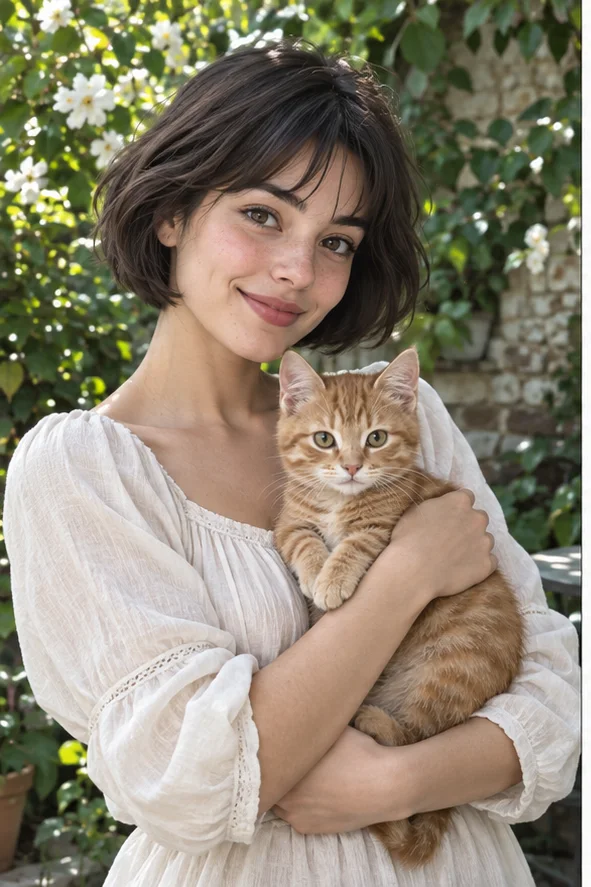
A crayon drawing feels hand-marked: overlapping color, broken strokes and small gaps where the paper shows through. Try this playful treatment on a person or pet you can recognize. The Crayon preset opens in the photo-filter workspace, so you can begin with your own photograph rather than invent a prompt or copy somebody else's picture.
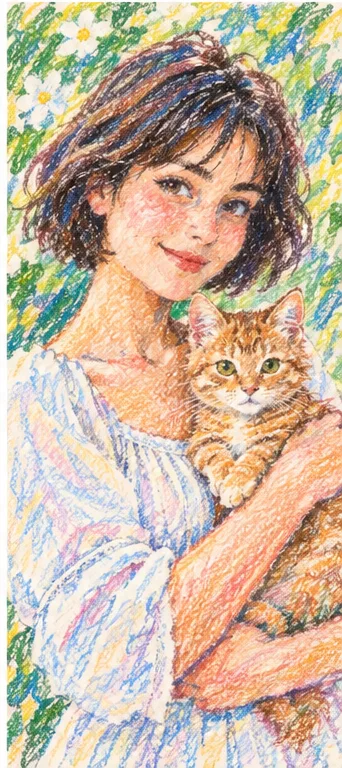
Style illustrations, not verified before-and-after outputs from the live tool. They show a visual direction; your photo may produce different colors, likeness and details.
Choose visible scribbles, not a faded photograph
Crayon is a good direction when you want energetic drawn marks around a clear subject. It is not the same as pastel-colored photo grading, a coloring-page outline or a promise to trace every pixel. The overlapping strokes can simplify fabric, foliage and fur. Decide which identifying features matter before you start: a cat's ear markings, a familiar expression or the main outline of a keepsake portrait.
Crayon, pastel or watercolor?
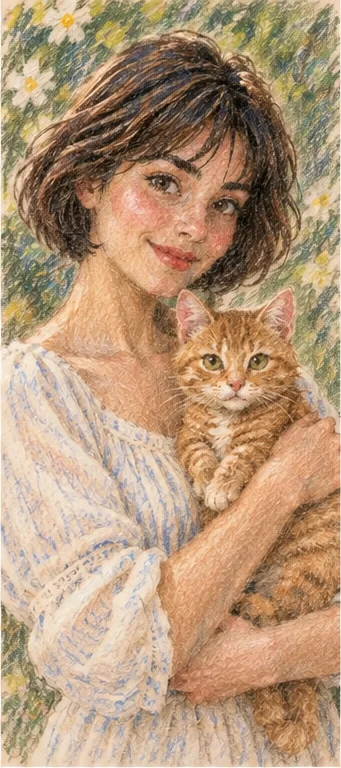
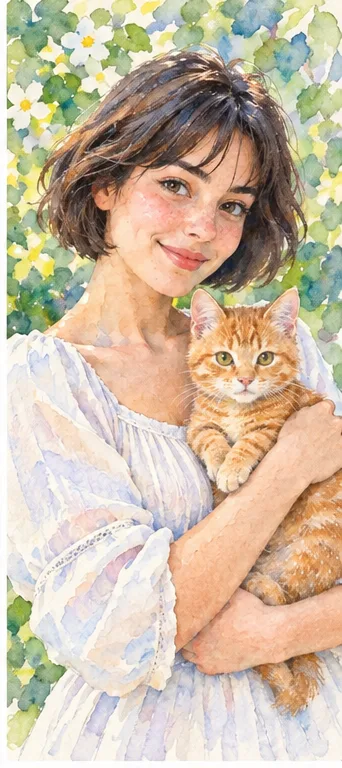
Choose by the marks you want to see. These owned editorial illustrations explain different surfaces; they are not customer results, controlled quality tests or proof that your photo will look identical.
Crayon: waxy color and lively scribbles
The crayon example has uneven colored marks that overlap without hiding all the paper. Hair and the cat's fur become groups of strokes rather than individually reproduced strands. Choose it for an informal illustrated portrait with visible hand-marked energy. If the strokes obscure the eyes or merge the cat with the arm, the result is not usable merely because the colors are cheerful.
Pastel emphasizes a powdery surface and more gently blended transitions. It may suit a quieter portrait where the paper grain matters more than scribbling. Compare the visible treatment on cheeks and the animal's fur; do not treat these digital examples as a scientific distinction between every real drawing material or expect controls for actual pigment pressure.
Watercolor interprets surrounding color as washes with a paint-like flow. Use it if flowers and backgrounds should feel looser rather than filled with repeated dry strokes. Transparent-looking color is an appearance, not a transparent file background. Choose the medium for the mood of the picture, not because a different filter is guaranteed to preserve more detail.
The useful starting point is a legible subject, not an input already covered in digital scribbles.
Keep distinctive features inside the frame Use a photo with readable eyes, complete ears and enough space around the head. For a person holding a pet, make both subjects large enough to inspect and avoid hiding the animal's face behind a hand. Crayon marks cannot recover an identity cue that was outside the photograph. Strong backlighting and tiny faces give you less reliable material for a keepsake.
Let the marks compete with fewer distractions Choose a background without important signs, small printed labels or a crowd of similar faces. Broad plants or simple furniture can become decorative color; an essential address or product label cannot. Keep the unmodified original. A compressed screenshot with a beauty filter makes it harder to distinguish the new drawing from details already altered before upload.
Use crayon energy at the right viewing size
A drawing that works as a small avatar may not be the same drawing you want on a personal card.
For an avatar, keep the face readable View the finished image at the actual profile size. Busy lines should not swallow the eyes, and a pet should still be distinguishable from a patterned shirt. Crop thoughtfully after selecting the image, rather than assuming an automatic social-media crop is included. The playful medium does not make an unsuitable or misleading identity photograph acceptable for official use.
For a keepsake, leave text to a layout step Use the illustration as a visual element in a card or personal memory page. Add names and messages separately so a generated mark is not mistaken for correct lettering. Check the downloaded pixel dimensions before printing. This preset creates a raster interpretation, not a physical crayon commission, editable stroke layers, print bleed or an automatically licensed merchandise design.
Separate drawing texture from structural mistakes
Broken lines are intentional; broken anatomy and lost identifying features are different issues.
Check where subject shapes meet Inspect the hand against the cat, the edge of the cheek against hair and the ears against the background. A scratchy boundary can be stylistic, but extra fingers, changed eye placement or a merged limb affect the subject. Compare these areas with the original before sharing. Do not use appealing surface texture as evidence that every feature has been preserved.
Judge recognition before choosing another medium If the important markings or expression are missing, try a clearer input or a different available style. Do not expect every new generation to repair a particular feature. Preserve the reference photograph and distinguish the illustration from documentation of an object, a real hair color or a person's exact appearance. Someone else's photo still needs appropriate permission.
01Choose a clear photo you may use Keep the person, pet and important features visible. Obtain consent before uploading another person's private photograph.
02Open Crayon selected The creation link should select the live Crayon style in the workspace. Confirm the style and total before submitting; the public filter catalog currently lists 2 credits per output. This is not unlimited free processing or a manual crayon-pressure editor.
03Compare, save and finish the layout Check recognition and shape, then inspect the image at its intended size. Keep the original separately and use a layout tool for lettering or print preparation.
A digital illustration, not an exact tracing
The AI redraw can change faces, pet markings, small objects and text. It does not provide a physical drawing, individual editable strokes, an SVG outline or guaranteed printing specifications. Source-image rights remain relevant. Review the current credit quote, download conditions and privacy policy before sending sensitive photographs.
Use a photo you can share with the service
Upload only photos you may authorize the service to process, with permission from other people shown. Avoid sensitive documents. Generation sends the image for processing, not local-only editing. Finished work can be viewed and downloaded in My Creations; removing a completed record hides it from your user history but is not a promise of immediate erasure from administrative records, providers or backups. Read the privacy policy and contact [email protected] for a data-deletion request. Review images before sharing, especially when another person or a child appears.