Explore yourself or a pet as a softly drawn character. The main button opens the photo-filter workspace with Anime selected, so you can start from a photo rather than inventing a person from text. First compare the examples and decide which familiar features you want to keep. This creates a still illustration: it does not animate the photo or guarantee an identical face.
Style illustrations, not verified before-and-after outputs from the live tool. They show a visual direction; your photo may produce different colors, likeness and details.
Keep recognizable clues, but expect a redrawn character
A good starting point is a clear face, visible hairstyle and expression that still matter when detail is simplified. Soft anime suits a personal avatar or playful portrait when you welcome a character-like reinterpretation. It is not a realism filter or an identity-preserving promise. If you only want to test an anime-inspired haircut on a photographic face, use the hairstyle tool instead. If you want blinking eyes or moving hair, this static photo-filter task does not provide that video output.
Choose the character treatment, not a famous character
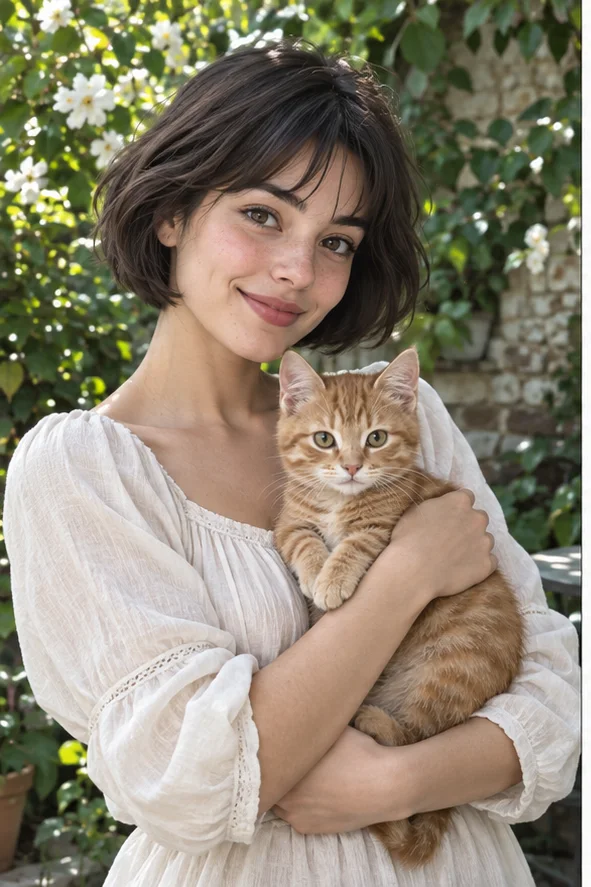
The three owned reference illustrations help you compare facial proportions, surface texture and setting. None is a verified customer output or a competitor benchmark. We do not promise a particular studio's style or exact reproduction of a copyrighted character.
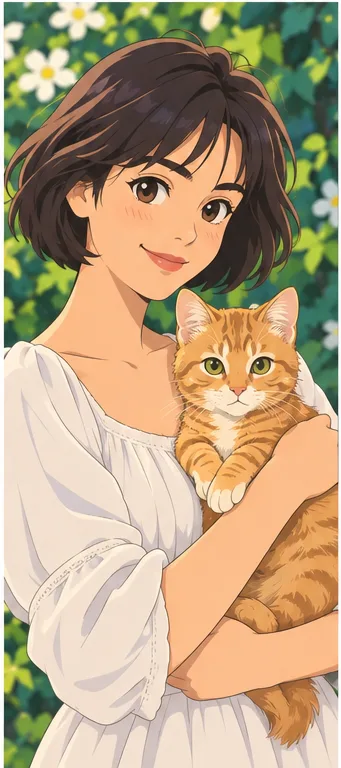
Soft anime: a drawn character portrait
The example has larger eyes, simplified nose shading and smooth areas of color. Try this for an illustrated profile that feels light and clear. Decide whether changes to eye size, skin tone and apparent age are acceptable; a cute drawing can still fail your requirement to look recognizably like the source.
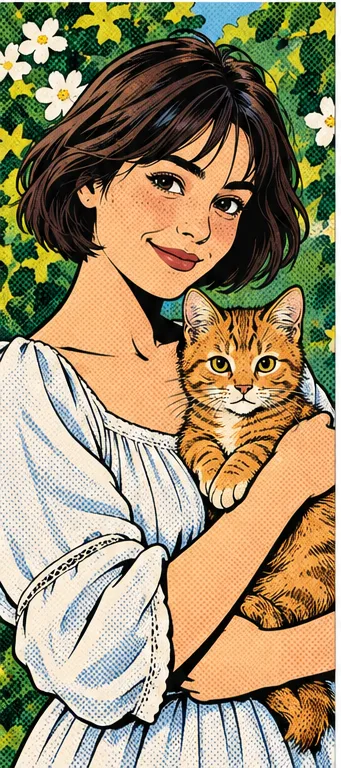
Black contours and dense dots give a stronger graphic feeling than the anime example. Compare it if you want a bold single-panel illustration rather than a soft character portrait. Dots can compete with facial details at a small size. The effect does not add speech bubbles or build a complete story.
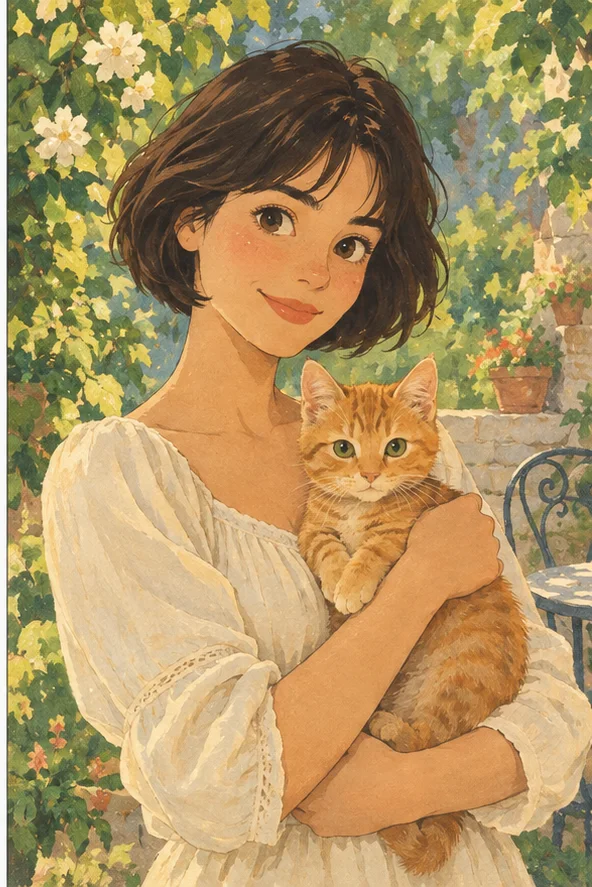
Paper-like texture, muted garden colors and a more painterly setting make the subject part of a storybook illustration. Compare this when atmosphere matters as much as the face. It remains one picture: you do not receive a book, coordinated page layouts or a cast guaranteed to stay identical across multiple images.
The source should already show what makes the person or pet recognizable; styling cannot recover hidden information reliably.
Face, hair and expression Pick a photograph with visible eyes, a readable mouth and the hairstyle you actually want as the starting point. Strong beauty filters, deep shadows or hair covering the face make comparison harder. Leave margin around the head for a future avatar crop. A front or gentle three-quarter view lets you judge the resulting expression more clearly than a tiny distant face.
One main subject before a group Start with one person or pet rather than a crowded selfie with overlapping hands and faces. Multiple subjects may be simplified unevenly, so a couple illustration needs checking for each person, not just the most attractive face. Choosing more uploaded photos is separate from recognizing every person within one photo; batch mode does not guarantee group-picture accuracy.
Keep the important accessory visible Glasses, a distinctive hair part, a familiar collar or a pet's markings can help the portrait remain understandable. Show them clearly rather than asking the redraw to infer them. Small writing and decorative logos may be invented. If exact clothing, product information or a badge is necessary, keep an unaltered photograph for that purpose.
Review the character, not only the prettiness
Use the original beside the result. Attractive anime proportions are not automatically appropriate for your intended avatar.
Eyes, skin and apparent age Look at eye direction and size, eyebrow position, mouth shape, skin color and the impression of age. Decide what degree of interpretation you want, rather than treating every difference as improvement. Reject a version that changes personal features beyond your comfort. There is no promise of exact likeness or that an anime redraw represents the real person faithfully.
Hands and pet anatomy Check finger count, wrists, cat ears, paws and the border where an arm holds a pet. Drawing conventions can make errors look plausible at first glance. Pet coat markings are especially important in a keepsake for someone who knows the animal. A pleasant face does not cancel out an extra paw or a missing familiar stripe.
Hair and background consistency Inspect parting, fringe, silhouette and objects around the head. Flowers or accessories may be added, and a background can change rather than simply become flatter. If your actual task is judging a haircut, do not use an altered anime face as a reliable haircut preview. Move to the hairstyle tool and compare a separate photographic example.
Make the finished avatar usable and honest
The destination determines the crop, legibility and level of identity accuracy you need.
Small circles and display names Preview your actual profile crop, especially where tall hair or the cat's ears sit near the frame. Check that the face is readable at the destination's small size and that background texture does not dominate. Add an accurate name in another editor if you need text. This preset does not provide layered type or an exact platform-ready crop guarantee.
Sharing, gifts and character projects Use photos you are allowed to process and ask permission before publishing someone else's portrait. Describe the result as a stylized image, not an official photograph. Check downloaded pixels before printing a gift. The tool supplies a raster still, not an animation, transparent character sheet or consistent game asset, and does not grant rights to reproduce a known character or studio property.
01Open Anime and choose your photo The button preselects Anime. Upload a permitted JPG, PNG or WebP with the face or pet clearly visible; keep the original so you can review familiar features afterward.
02Confirm the style and credit total Check the selected style and current total in the workspace. More photos or additional styles mean more results. Generation is not promised free, and a new attempt may also require credits.
03Compare, crop and save Review expression, anatomy and the actual avatar size before downloading a version you want to use. Further crop or accurate text can be handled in your usual editor; movement requires a different tool.
A still character image, not video or an identity guarantee
Anime redrawing may change age expression, facial shape, skin tone, hair, clothing, objects and background. It is not a certified identity photograph, moving animation or exact known-character generator. Examples illustrate a direction rather than a proven production success rate. Keep the original and inspect your own output before sharing.
Use a photo you can share with the service
Upload only photos you may authorize the service to process, with permission from other people shown. Avoid sensitive documents. Generation sends the image for processing, not local-only editing. Finished work can be viewed and downloaded in My Creations; removing a completed record hides it from your user history but is not a promise of immediate erasure from administrative records, providers or backups. Read the privacy policy and contact [email protected] for a data-deletion request. Review images before sharing, especially when another person or a child appears.