
AI image generator
Create a background with room for your clock and icons
Create my screen background ↗Describe the place, color and mood you want to see every day, then choose the screen shape before generating. A wallpaper should look good behind a clock, icons or an open window, not only as a standalone illustration. Our wide seaside example places most detail on the right and leaves calmer sky on the left, providing a useful starting direction for a desktop background.
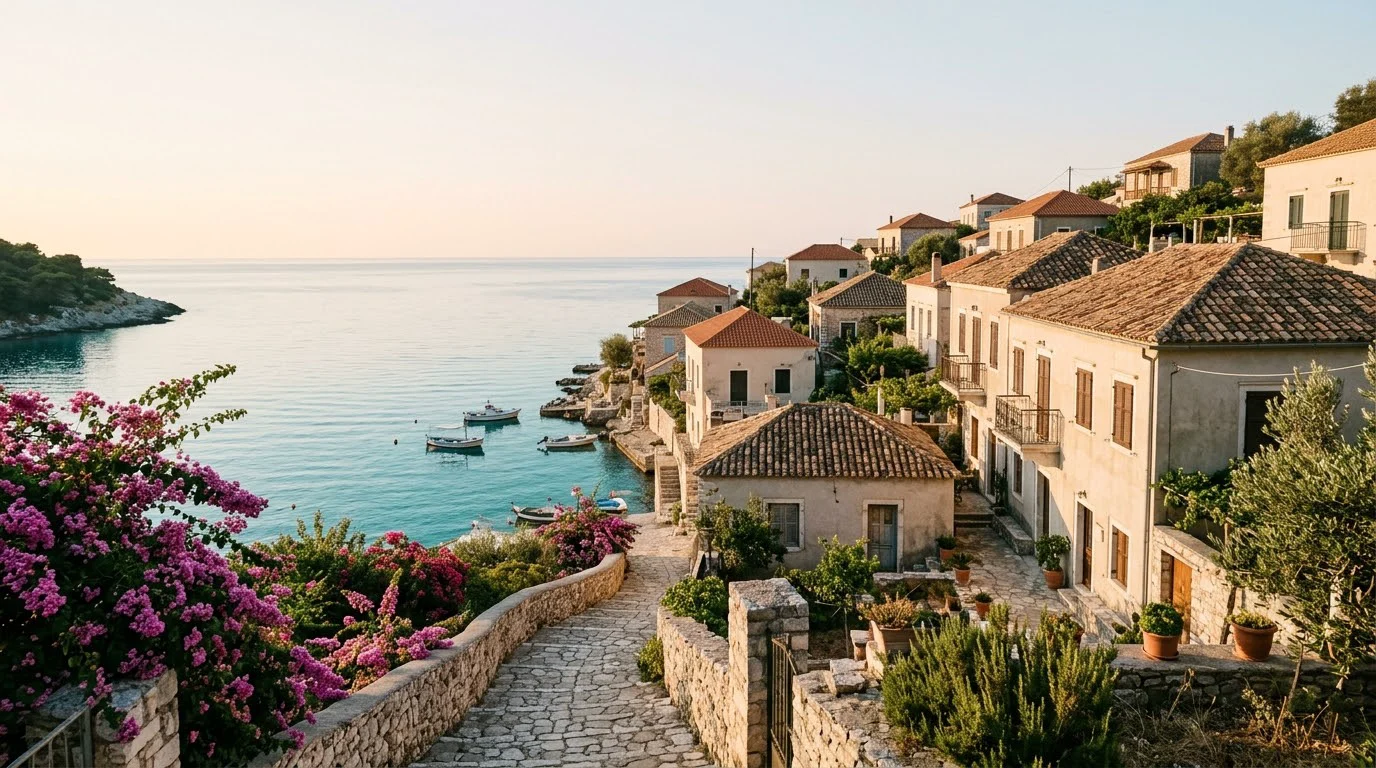
Choose wallpaper generation for a new decorative scene, not to expand the edges of a photograph that must remain intact. Use image extension for the latter job. Begin with the orientation of your device, one focal area and a quiet area for interface elements. A 16:9 image is a starting shape for some desktops, not a guarantee of a perfect fit on every display or a verified 4K sample.
From your idea to a finished image
Prepare
Check your display's orientation and where the clock, dock or main icons sit. Decide which part should remain quiet. Write one scene direction and palette before choosing a model or adding a reference photograph.
Choose
The example opens Nano Banana 2 with its wide landscape prompt. Adapt the composition to your screen in the workspace; for a tall device, choose an available portrait ratio and rewrite the position of the focal subject rather than stretching the wide image.
Create
Open the workspace, review the selected model, image settings and current credit estimate, then submit when ready. The link does not upload a sample or start a paid job. Each new generation is a separate request; an eligible failed task returns its charged credits. Keep the original files before experimenting.
An editable starting prompt
Create a wide travel-editorial photograph of an imagined Mediterranean seaside village at sunrise. Terracotta rooftops on the right, a curving stone path, bougainvillea and a turquoise cove. Warm sunlight, natural limestone, relaxed holiday mood. Leave calm pale sky at the upper left for a later headline. No people, letters or logos. Horizontal 16:9.
Compose for the interface, not an empty gallery
A wallpaper shares space with other visual elements. A highly detailed subject behind every icon can be tiring even when the image is beautiful. Identify where you usually place your clock, shortcuts or open windows and reserve a quieter area there. The sample's open sky on the left contrasts with textured roofs and flowers on the right. This is a compositional observation, not an automatic desktop integration. Ask for calm space in a specific part of the frame and place the focal subject elsewhere. A background that lets you find your applications comfortably has succeeded at a different job from a promotional poster.
Set orientation before describing details
Start with whether the image will be wide, tall or close to square. Then describe how the scene should fill that frame. A panoramic village has a different composition from a vertical view of a single street. Cropping a wide image into a phone background may remove the subject and leave the wrong area behind the clock. Generating a portrait composition is usually a clearer request than asking a landscape to fit everything. The available aspect ratios belong to the current selected model. A ratio label does not promise an exact device resolution, so compare the downloaded dimensions with the screen you intend to use.
Choose a mood you can live with
Try one visual direction at a time: soft natural light, a restrained gradient, a textured illustration or a darker evening scene. The example uses warm sunrise and muted limestone, not neon or a high-contrast gaming aesthetic. Bright highlights can attract attention on a lock screen; small repeated details can compete with text. Decide whether calm readability or vivid decoration is the priority, then write the palette and light accordingly. A model can interpret these directions, but it does not know your icon arrangement or accessibility preferences. Preview the result on the actual device before keeping it as your everyday background.
Use a personal photo without confusing the workflows
If you want a new interpretation of a photograph, upload an authorized reference and explain what should remain recognizable. A generated scene can change details; it is not an uncropped original. If the existing photo itself must remain, use the dedicated extender and inspect the expanded region instead. If you simply want a painted version of one image, a photo filter may be enough. These choices help avoid an expensive series of prompts that solve the wrong problem. Do not use the landscape example as evidence of exact preservation of a person's face, a real landmark or a licensed character you have not supplied.
Save for the screen you actually use
Inspect the result at the intended scale after download. The shown original is 1376 by 768 pixels, created with the 1K setting; the page preview is not an original 4K benchmark. Available higher settings and their credit estimate are shown in the workspace, and a larger file is a new request rather than a free property of this sample. My Look Story supplies an image, not an automatically installed operating-system theme, animated background or icon pack. Set the wallpaper with your device's normal controls and check any crop it applies. Keep the accepted image and prompt so a later change to your screen arrangement has a clear starting point.
What this workflow does and does not deliver
- Keep the clock and important icons away from the most detailed area.
- Inspect orientation, crop and actual pixel size on your own device.
- Do not label the 1K landscape example as a verified 4K or animated wallpaper.
Editorial method: task-specific guidance checked against the current workspace and site-owned model examples. Examples were generated on October 7, 2026, at the 1K setting; they are not customer testimonials, competitor results or proof of universal performance.
Reviewed October 13, 2026
Privacy and image deletion ↗