Use multiple video references without confusing their roles
More references can add useful evidence, but conflicting faces, clothes or lighting can also muddy the result. Start with the minimum set that explains one scene.
Opens an editable prompt and settings. Add your own references if needed; nothing is uploaded or generated by this link. Check the current credit estimate before submitting.
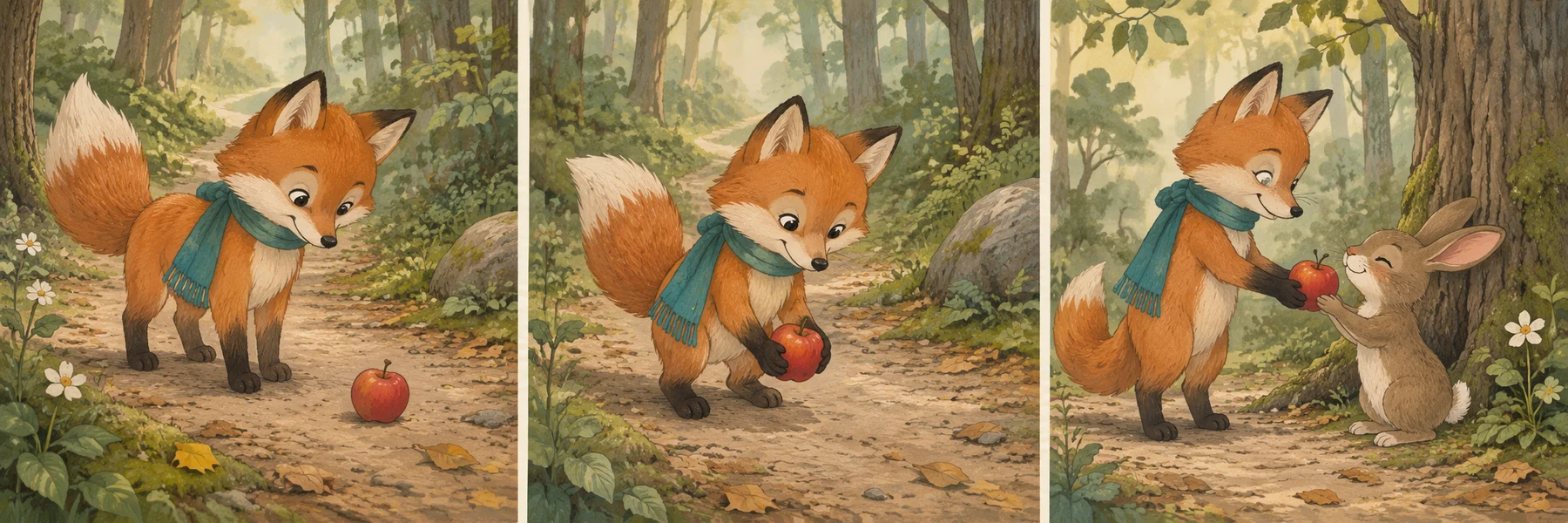
Static visual reference · not a generated video result
What to look for in this example
The multi-panel study illustrates planning several related moments before making separate assets.
Use it as a storyboard, not a promise that reference images become ordered keyframes. Check each planned subject and its role separately.
01
Choose the source for this shot
The current workspace accepts up to nine JPG, PNG or WebP images. Try two complementary views first: one clear subject and one setting. Inspect each before uploading; capacity is not a recommendation to fill every slot.
02
What should move?
Describe a single event and assign each reference a purpose in words. Images should agree about the subject’s identity and costume; an unrelated face is not a useful extra angle.
03
Where should the camera be?
Reference order is not a timeline. This interface has no separate first-frame and last-frame slots, so do not expect image one to become the opening and image two the ending.
Subject / appearance
Setting / atmosphere
Two visual roles; not opening and closing frames · Static visual reference · not a generated video resultIN PRACTICE
Work through a practical example
01
Have these ready
Give every reference one job before uploading it. For example, one image establishes the character and another the setting. Use a single consistent character design and remove unrelated collage panels that could be mistaken for additional subjects.
02
Make the first version
Begin with two references even though the workspace accepts up to nine. Explain which supplies the character and which supplies atmosphere, then describe one action. Check whether the model combined the intended roles or copied a second subject into the scene. Add another view only when you can name the missing information it supplies.
03
Choose the next move
A second view of the same item can explain hidden shape; a conflicting design can create uncertainty. More references are not automatically more control. Keep the smallest set that tells the story and judge the generated clip against that set.
Decide whether the clip is usable
Check which traits came from which source. If the setting is right but the costume changes, remove the less relevant image and compare with the same prompt and settings.
If the first attempt misses
The storyboard illustration here explains a sequence; it is not a set of verified H3 keyframes. For precise cuts or timed transitions, assemble separately generated clips in an editor.
A starting prompt for this scene
A vague starting request
Use all of these pictures in a video.
A concrete version to adapt
Assign appearance and setting roles explicitly. A reference list is not an instruction to play pictures as ordered shots.
Copy it or open it in the workspace to edit. Replace the subject details to match your own source.
Use the supplied character image for appearance and the supplied woodland image for the setting. Keep the character’s outfit consistent. The character looks toward a falling leaf and pauses. Fixed wide camera, coherent painted style, one continuous scene.
Writing example; adapt it to your reference. This is not a claim that these words guarantee an output.
No ordered slideshow or first-to-last-frame sequence is promised by this reference input. The images provide visual guidance. If you need a precise sequence, create individual shots and arrange them in an editor; describe the intended order in your project plan rather than assuming the reference list acts as a timeline.

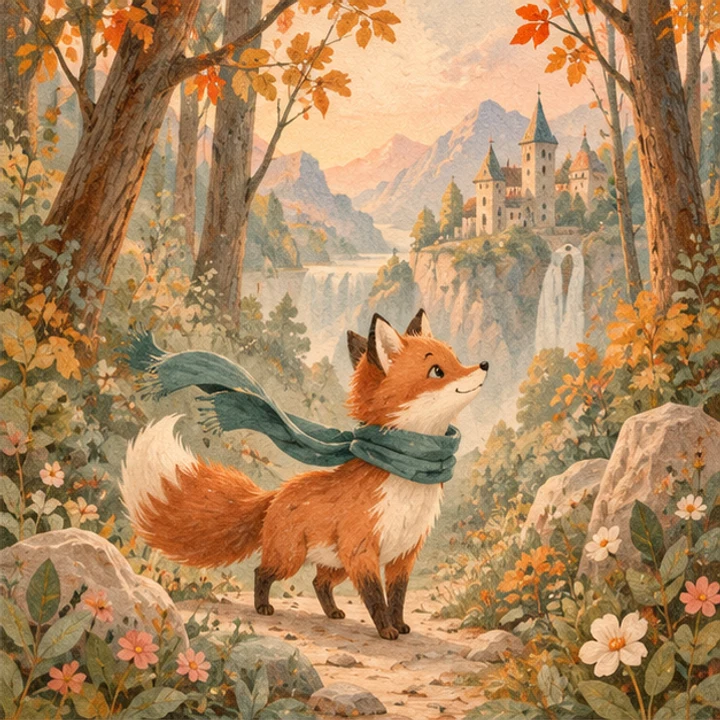 Subject / appearance
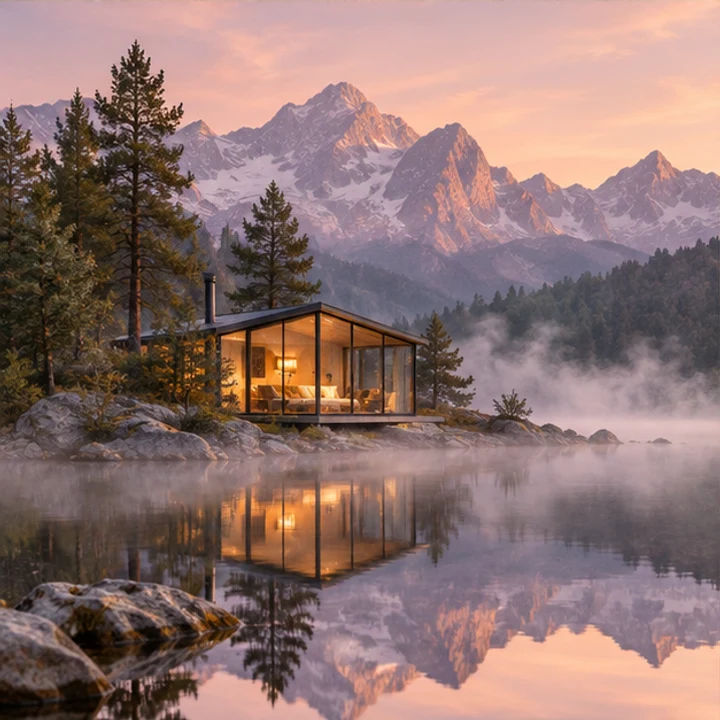 Setting / atmosphere