
Remini
Looking for a Remini alternative for an old photo? Identify the damage first.
Try old-photo repair with my image ↗A faded family photograph can be blurry, scratched, stained or simply low in resolution. Those are different problems. Remini offers photo enhancement, including digitised old photographs. My Look Story separates old-photo repair, colourisation and image enhancement into explicit paths so you can choose what you want changed before generating.
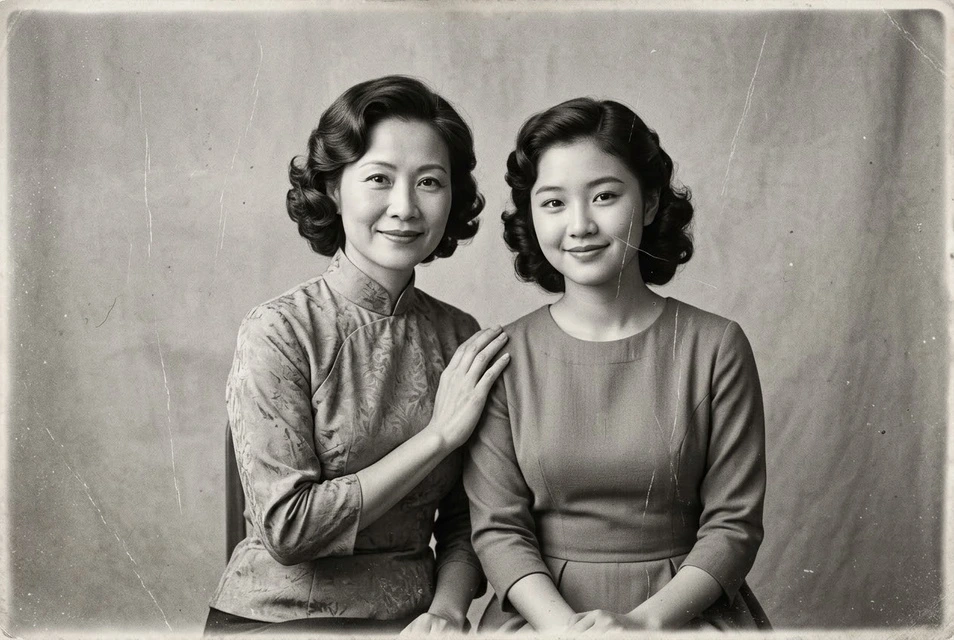 Original
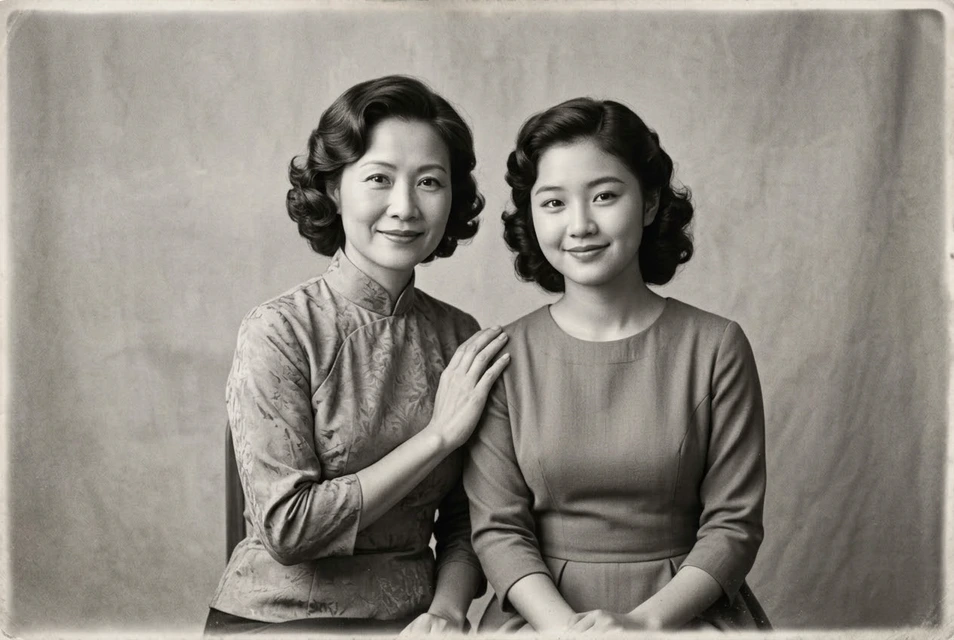 My Look Story example
Choose the workflow, not a universal winner
Remini may suit an enhancement-first task, especially if you already use its app or web environment. My Look Story may suit an explicit repair request followed by separately chosen colourisation or another photo tool. For enlargement alone, use our image enhancer rather than the repair preset. Neither a sharper-looking face nor a colourful result proves that the original person's features or historical colours have been recovered accurately.
Start with your own photo
Prepare your source
Preserve an unedited scan and, if possible, obtain a clear evenly lit copy of the print. Identify blur, scratches, stains and fading separately before selecting repair.
Use the matching editor mode
The action opens the old-photo repair preset. Colourisation is not silently included. You still upload your own image and review the current quote before submitting.
Review cost, generate and compare
The workspace shows the current quote before submission. Generation uses credits; a new paid attempt needs a fresh balance check. Failed tasks follow the displayed refund status. Downloads depend on your account access. Use photos you own or are authorised to edit, and manage saved tasks in My creations.
Enhancement is not the same as every kind of restoration
Remini's public product and help material describe enhancing low-quality images, including old images stored digitally or photographed from a print. That is a relevant overlap, but it does not establish identical handling of every scratch, tear or missing facial feature. My Look Story's repair path requests cleanup of visible photo damage; its colourisation and enlargement paths are separate choices. Decide what makes the source difficult to use before selecting a tool. A larger pixel count does not automatically remove a crease, and adding colour does not inherently repair the underlying damage. Compare the result required for your family album rather than an entire provider catalogue.
Improve the scan before asking AI to invent detail
Photograph a print under even light and avoid glare that hides the surface. Keep the camera or scanner aligned so that a bent frame is not mistaken for part of the scene. Save the highest-quality original you have, not only a compressed copy forwarded repeatedly through messaging. Separate reversible cropping for convenience from edits that reconstruct content. If another scan or a second family copy reveals a missing area, that source information is more trustworthy than a model's plausible invention. Do not discard the damaged version after obtaining a clean-looking result; it remains the reference for identity and historical detail.
Assess the person as well as the paper damage
First check whether distracting scratches, spots or fading were reduced. Then compare eye spacing, hairline, mouth shape, age cues, jewellery and distinctive marks with the source. More detailed eyes can still be newly generated eyes. A tear across a face or a very small blurred head gives the editor less reliable evidence than a surface stain away from the subject. Familiar family members may notice changes that a generic sharpness score misses. Keep an AI-restored version clearly separate from the original, particularly if the photograph is used for a historical record, identification or a memorial where recognisability matters.
Keep repair, colour and enlargement as explicit choices
A black-and-white photograph may deserve to remain monochrome. Choose colourisation only when you want an interpreted colour version, and do not claim that the model knows the actual fabric, hair or wall colours of the past. For a larger digital copy, choose the image enhancer and its available settings; do not assume that the restoration action provides every enlargement tier. Remini's available controls can differ between its app, web service and current account conditions, so check the experience you intend to use. We have not performed a paid same-image Remini comparison or measured a restoration success rate. This guide therefore gives selection criteria rather than a winner. Try a suitable authorised source, compare at the intended viewing size and a closer view, keep the unedited scan and review the cost before any separate retry. Private family material should be uploaded only after you understand the service's privacy and deletion controls.
- Paper damage improved without confusing missing information with recovered fact.
- Familiar facial features and age cues remain recognisable against the source.
- Original, restored and colourised versions are kept distinct.
We publish My Look Story and have a commercial interest in its use. These guides compare documented workflows, not measured image quality, speed or equal-price performance. We are not affiliated with the named products. Examples belong to My Look Story; they are not competitor outputs or customer testimonials.
Reviewed: October 12, 2026
Privacy and deletion ↗