Have these ready
Use the real story-screen preview with captions and controls. Identify the part of the original photo that must remain visible.

Expand the composition
First test whether a crop can preserve the subject. If not, extend above and below while keeping the original large enough to read on a phone.
You choose your own source and review the current cost before generation.

Leave interface zones free of essential faces and text. Check the destination’s current preview because overlays vary by application.
Preview with a real caption and interface overlay. If the original becomes too small, use another photograph rather than expanding further.
Expand my photo ↗Use the real story-screen preview with captions and controls. Identify the part of the original photo that must remain visible.
Fit the horizontal source without stretching. If the crop loses important content, add top or bottom space and inspect its continuation. Test the final story with real text overlays, especially where interface elements hide the edges or bottom.
Use a close crop for one detail and expansion for a complete scene. If the original contains several competing subjects, a new photograph may work better than adding empty vertical space.
Why consider this directionUse the source to locate the existing subject and decide where extra layout space is actually needed.
Check before choosingCheck the original crop before interpreting any added area. Space outside it is not a photographed record of the surroundings.
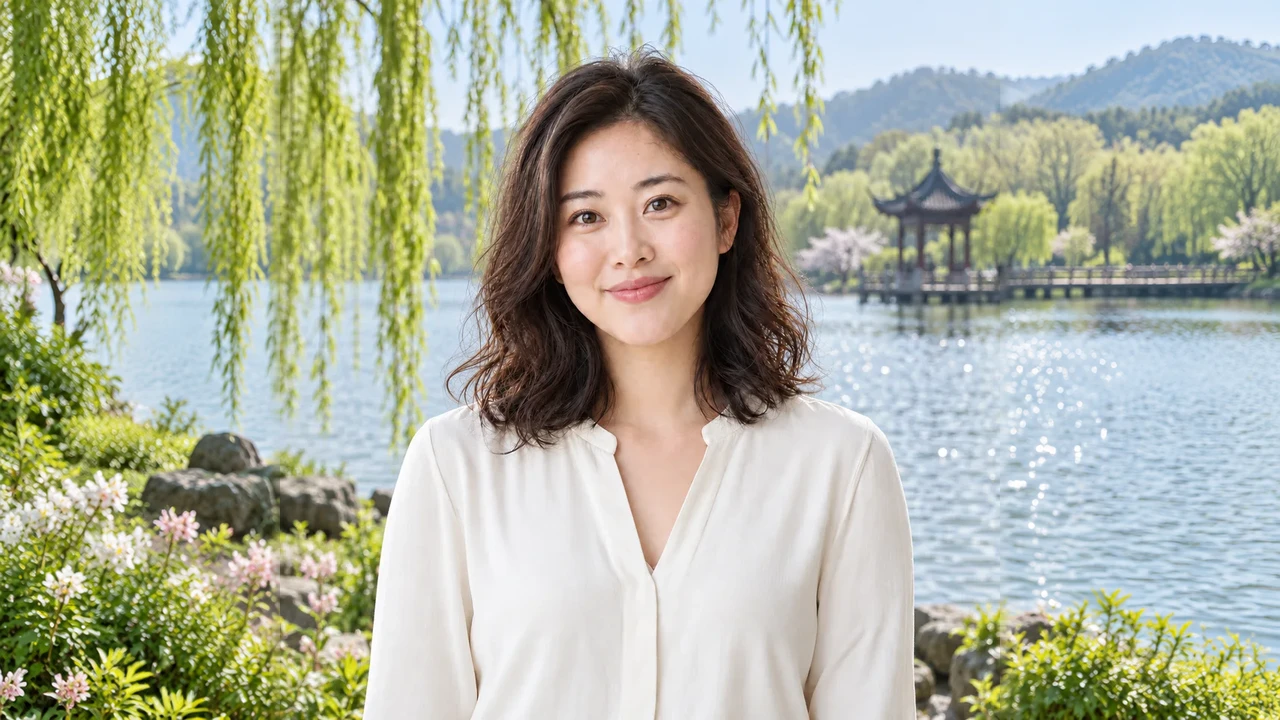
Why consider this directionThe earlier wider example shows how extra surroundings can make room for a portrait-led layout.
Check before choosingFollow the joins near the shoulders and any straight background lines. Check the new composition with real text, not just the image alone.
No. Interface layouts, devices and caption lengths vary. Treat any diagram as a composition guide and verify the current upload preview. Keep the complete master so later placement changes can be handled with another crop.
Content reviewed: