
Fotor
Considering Fotor AI Replace? Define the new object before you generate.
Replace an object in my photo ↗Replacing a cup with a plant is a different job from deleting the cup. Fotor provides AI Replace and a broader generative-fill entry. My Look Story offers Brush & replace: your painted region identifies the location, and an editable description defines the object. This page helps you choose that workflow without treating two appealing pictures as a quality contest.
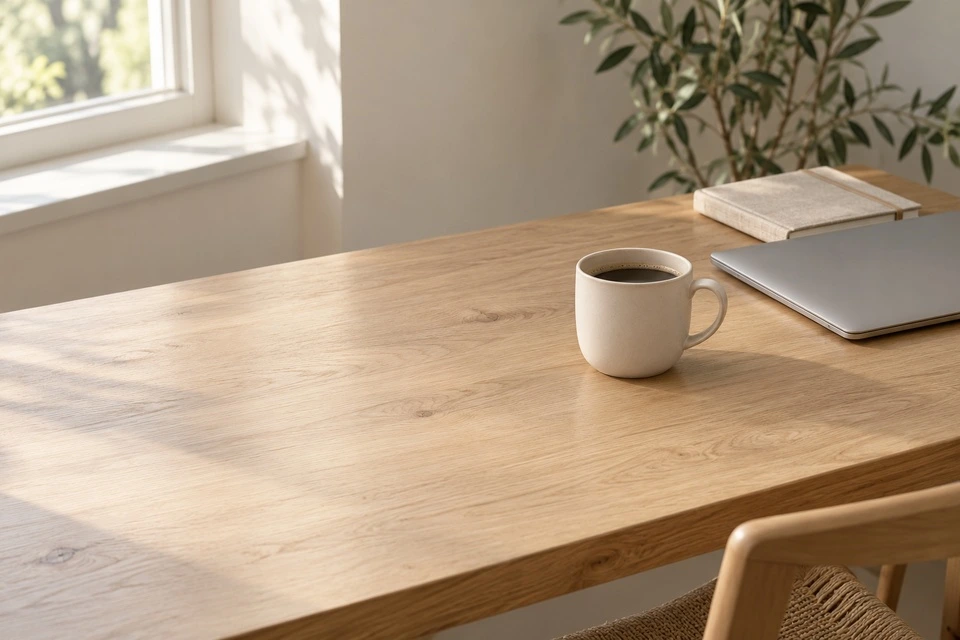 Original
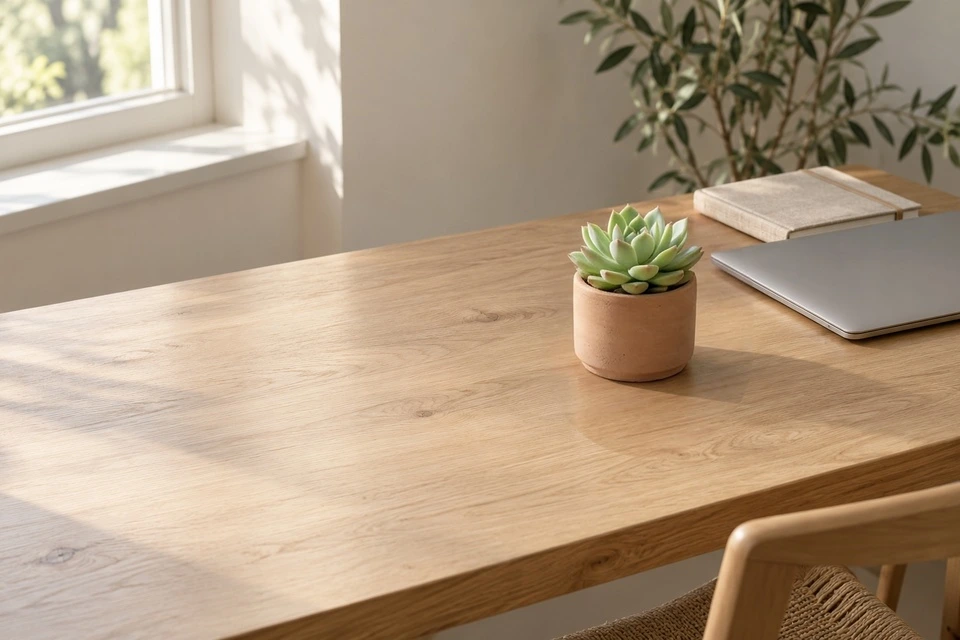 My Look Story example
Choose the workflow, not a universal winner
Fotor may suit you if you already work in its editing environment and want its related fill or design tools. My Look Story may suit a photo-first experiment where you mark an object and describe a generic replacement before continuing with your saved image. Our guided brush flow is not an exact catalogue-product swap from a second reference photograph, and this comparison does not claim equivalence with every feature called generative fill.
Start with your own photo
Prepare your source
Choose the object's intended size, material and position. Keep important text, faces and other products outside the proposed brush region.
Use the matching editor mode
The action preselects Brush & replace with an editable plant prompt. You still provide your own photograph and paint the target before submission.
Review cost, generate and compare
The workspace shows the current quote before submission. Generation uses credits; a new paid attempt needs a fresh balance check. Failed tasks follow the displayed refund status. Downloads depend on your account access. Use photos you own or are authorised to edit, and manage saved tasks in My creations.
A narrow object swap within broader generative fill
Fotor's current public AI Replace page describes using prompts to change selected image elements, while its generative-fill page groups adding and replacing content under a wider editing task. The overlap is real, but those labels do not establish identical controls or account access. My Look Story's guided replacement begins with one photograph and a manually painted region. If you need to extend the canvas, remove the whole background or generate a scene without an existing image, those are different jobs with separate tools. Compare the actual operation you want rather than judging a complete design platform against a single editing mode.
Write a replacement brief that can fit the space
Name the new object, its material and the way it sits in the scene. A short matte ceramic vase on the desk gives more useful direction than something beautiful. For the plant example, the pot's height must fit below the nearby screen, its base must meet the table and its lighting should follow the visible window. An instruction cannot correct contradictory geometry: asking for a tall floor plant inside a small cup-sized area leaves little room for a plausible result. Keep the prompt concise and editable, and deliberately expand the painted region if the new silhouette needs more space.
Inspect perspective, support and what was removed
Look at the base before admiring the leaves. A pot that floats above the tabletop or casts a shadow in the wrong direction weakens the entire photograph. Follow nearby notebook borders and check for an old handle, rim or highlight still attached to the replacement. The brush boundary can help retain surrounding working-image pixels, but resizing and edge blending mean it is not a full-resolution forensic lock. Reflective objects, transparent glass and large overlaps require a different assessment from a matte pot. A generic plant preview does not establish exact brand packaging, legible labels or a second-photo product transfer.
Choose according to your intended deliverable
If your work already lives in Fotor, staying there may avoid unnecessary movement between editors. If you are exploring one prop in your own photograph and want a saved result in My Look Story's workspace, the focused brush path can be a useful starting point. We have not tested both services under the same paid tier or measured which is faster, cheaper or more accurate. Use a source you are authorised to modify, keep an original and treat a decorative swap as creative content rather than an unchanged record. A customer listing needs truthful product identity: do not use generated packaging to imply that an invented item is the actual item for sale. For empty space instead of a new prop, choose removal; for words to direct a broader edit, compare the text-instruction workflow.
- The previous object and its associated shadow are absent.
- The replacement has plausible size, support and lighting.
- No exact product identity or commercial colour match is implied.
We publish My Look Story and have a commercial interest in its use. These guides compare documented workflows, not measured image quality, speed or equal-price performance. We are not affiliated with the named products. Examples belong to My Look Story; they are not competitor outputs or customer testimonials.
Reviewed: October 12, 2026
Privacy and deletion ↗